This official feed from the Google Workspace team provides essential information about new features and improvements for Google Workspace customers.


What’s changing 

We’re adding several new ways to customize tables in Google Docs. You can now: 

  • Pin a table header row to repeat on each page 
  • Designate that a row should not be split across pages 
  • Quickly add, and arrange columns and rows 
  • Sorting tables to better organize data. 
  • Use a new table sidebar to manage table properties 

See below for more details. 

Who’s impacted 

End users 

Why it matters 

Tables are an important way to display information in a document. These new features give you more ways to present information using tables, making it easier for viewers of the document to quickly see and understand the information. 

Additional details 

Pin a table header row to repeat on each page 

You can pin one or more rows in a table so they repeat on each page that the table appears on. This will make it easier to see column headers for long tables as you navigate a document. 

Pinning a table header row to repeat on each page


Designate that a row should not be split across pages 


You can designate that a table row should not be split across a page break. This ensures important content in tables sticks together and isn't missed on the next page, and provides more control over formatting and layouts. 

Designate that a row should not be split across pages


Quickly add and arrange columns and rows 

You can now easily drag a row or column to a different location. You’ll also notice a new, intuitive button for creating new rows or columns. 


Adding and arranging columns and rows


Sorting tables to better organize data. 

It is now possible to sort the rows of your tables. Any pinned table headers will remain at the top of your table. Additionally, sorting table rows will group by type of content. This will help you to quickly visualize, understand, and organize your data better. 

Use a new table sidebar to manage table properties 


Table properties will now open in the sidebar, allowing you to see edits reflected in your document in real time. This is similar to functionality already available in docs for things such as image editing. 

Using a new table sidebar to manage table properties


Getting started 

  • Admins: There is no admin control for this feature. 
  • End users: Visit the Help Center to learn more about how to Add and Edit Tables 

Rollout pace 

  • Rapid Release domains: Extended rollout (potentially longer than 15 days for feature visibility) starting on December 7, 2021 
  • Scheduled Release domains: Extended rollout (potentially longer than 15 days for feature visibility) starting on December 22, 2021 

Availability 

  • Available to all Google Workspace customers, as well as G Suite Basic and Business customers Available to users with personal Google Accounts 

Resources 

Roadmap 

What’s changing 

We’re introducing video conferencing interoperability for Google Meet with Cisco Webex, which will allow you to:

  • Join Webex meetings from Google Meet hardware devices
  • Join Google Meet calls from supported Cisco Webex devices

Please note that core video conferencing features are supported.  Some advanced features, such as polls, breakout rooms, and dual-screen support, may not be available when using Meet hardware to join Webex calls and vice versa.

Once available, Meet Hardware devices will be able to dial into Webex meetings by default—Admins can disable this feature for specific organizational units via the Google Meet Hardware Settings page in the Admin console.


Who’s impacted

Admins and end users


Why it’s important

We hope this update makes it even easier for our customers and their users to connect and collaborate with people outside of the Google Meet ecosystem. 


Additional details

There is no additional cost associated with using this new built-in interoperability feature on supported devices.

For interoperability needs outside of Cisco Webex, we recommend Pexip. Pexip enables joining Meet calls from the widest range of third-party video conferencing hardware, including older devices that may not support built-in interoperability. Use this Help Center article to learn more about Pexip.


Supported devices
Webex interop on Meet hardware
  • Joining Webex calls from Google Meet hardware devices will be supported on all devices that have not yet hit their auto-update expiration date.  At launch, this feature will require either a connected touch controller or built-in touchscreen.  Support for devices using only a remote control will follow in a subsequent update—we’ll share an update on the Workspace Updates Blog once that becomes available.

Meet interop on Cisco devices
  • Refer to the Webex Help Center for the latest list of supported devices that can join Meet calls.

Getting started

  • Admins: Webex interop on Google Meet hardware will be available on devices by default and can be disabled at the OU level at Devices > Google Meet hardware > Settings > Device Settings

  • End users: When enabled by your admin, you can join a Webex meeting from a Google Meet hardware device by: 
    • Joining an ad-hoc call by tapping "Join or start a meeting" on your touch controller and selecting Webex from the dropdown options. 
    • Joining a scheduled call by adding a room to an event with Webex meeting details.  
      • Note: Calendar events that originate outside of Google Calendar must be duplicated and populated with room details manually.
  • Visit the Help Center to learn more about Google Meet interoperability.


Rollout pace

Webex interop on Meet hardware
Meet interop on Cisco devices
Note: Please refer to official Cisco announcements for more specific details on timing for availability for Meet interop on Cisco devices.


Availability

  • Available to all Google Workspace customers, as well as G Suite Basic and Business customers, with Google Meet hardware devices


Resources:


Quick launch summary

You can now set tasks to repeat in Google Calendar and customize the recurrence schedules, similar to other entry types in Calendar. This means you can:
  • Create tasks with recurrence rules
  • Edit the recurrence rule of an existing task
  • Set an "end condition" for a recurrence rule
Change the recurrence of a task in Calendar


We hope this change helps you get more things done in Google Workspace.

Getting started

  • Admins: There is no admin control for this feature.
  • End users: These options will be available when creating a new task, or editing an existing task in Calendar. Visit the Help Center to learn more about tasks in Calendar.

Rollout pace

Availability

  • Available to all Google Workspace customers, as well as G Suite Basic and Business customers

Resources

Quick launch summary

Google Meet hosts and co-hosts can now lock all participants’ audio and video from iOS devices, which locks all participants’ audio so they’re muted or prevents participants’ from using their camera respectively. These settings can help prevent disruptions, keeping your meetings on track and productive.

Previously  it was only possible to use these locks when using Google Meet on a computer. We anticipate this feature to be available for Android in early 2022 — we will provide an update on the Workspace Updates Blog once available.

Additional details 

Please note:

The Audio Lock & Video Lock setting applies to all devices regardless of whether it’s set on a computer or an iOS device.

When Audio Lock or Video Lock is enabled, mobile participants may be removed from the meeting if their device doesn’t have:

  • The most updated version of the Meet or Gmail app
  • Android OS version M or newer 
  • iOS version 12 or newer

Once Audio or Video Lock is disabled, removed participants will be able to rejoin.

Getting started

  • Admins: There is no admin control for this feature.
  • End users: Visit the Help Center to learn more about locking audio or video during a Google Meet meeting.


Rollout pace


Availability

  • Available to all Google Workspace customers, as well as G Suite Basic and Business customers


Resources


What’s changing

You can now start or join meetings and audio calls from 1:1 chats in Google Chat in Gmail on Android and iOS. At the moment, this feature will be available for 1:1 chats only.

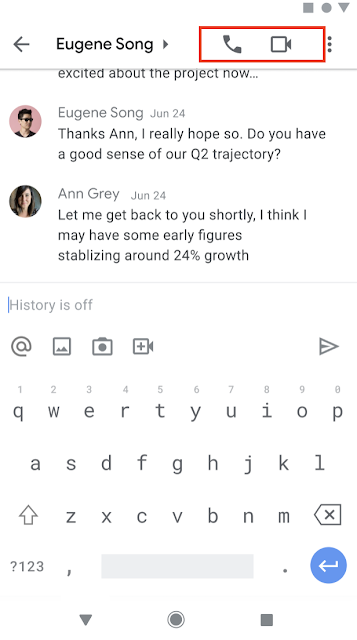
To ring someone directly, select the phone or video icon in the top right corner of a 1:1 chat.


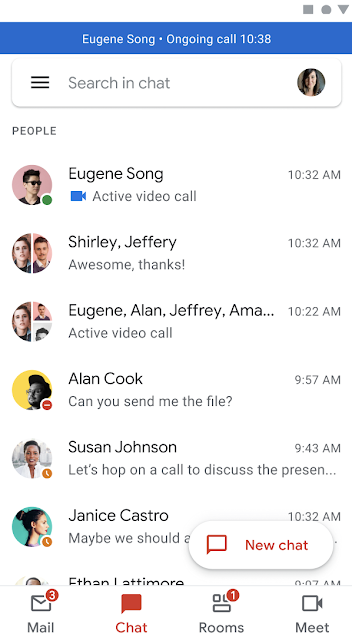
To join a call, select the phone or video chip within the 1:1 chat. While on a call, you’ll see a banner of the person you’re on a call with, the call duration and a Meet icon in the chat roster.


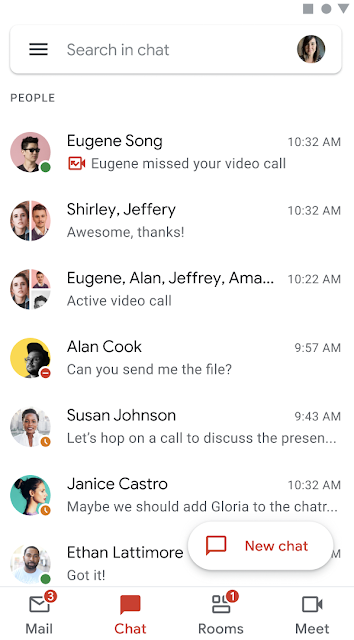
Missed calls will be indicated with a red phone or video icon within the conversation and the chat roster.


Who’s impacted

End users


Why you’d use it

As some teams begin to return to office, while others remain distributed, we hope this makes it easier to connect with your colleagues in the hybrid work world. This feature will allow you to seamlessly switch between chat to a video or audio call when needed, helping you collaborate and move your work forward.


Additional details

While you can select “Join a call” from the Google Chat app, you will be redirected to the Gmail app, where the call will take place. If you do not have the Gmail app on your device, you’ll be prompted to download it via Google Play store or the App Store. We’ll provide an update on the Google Workspace Updates Blog when this feature becomes available for the Google Chat mobile app.


Getting started


Rollout pace


Availability

  • Available to all Google Workspace customers, as well as G Suite Basic and Business customers
  • Available to users with personal Google accounts

Resources