This official feed from the Google Workspace team provides essential information about new features and improvements for Google Workspace customers.


What’s changing 

You can now use groups to manage context-aware access for your organization. You could previously only manage them by organizational unit (OU). Context-aware access lets you control access based on user identity and context. Managing this with groups provides extra flexibility, so you can make sure the right users have the right levels of access at the right time.

Use our Help Center to find out how to manage context-aware access.

Who’s impacted 

Admins

Why you’d use it 

With context-aware access, you can set up different access levels based on a user’s identity and the context of the request (location, device security status, IP address). This can help you provide granular access controls without the need for a VPN, and give users access to G Suite resources based on organizational policies. Find out more about context-aware access.

Using groups enables more granular access controls while minimizing the amount of work required to create and manage different OUs. For example, groups may make it easier to set up different policies for:

  • Users at different organizational levels (e.g. executives) 
  • Users in specific roles (e.g. admins) 
  • Users with different employment statuses (e.g. full-time employees or temporary workers) 


Getting started 


Admins: There will be no change to existing context-aware access policies, but you can now set policies at the group level. Visit the Help Center to get an overview of context-aware access, or learn how to customize context-aware access with groups.

End users: There is no end user setting for this feature.

Rollout pace 


Availability 


  • Available to G Suite Enterprise, G Suite Enterprise for Education, Cloud Identity Premium, and Drive Enterprise customers. See more details
  • Not available to G Suite Basic, G Suite Business, G Suite for Education, G Suite for Nonprofits, and Cloud Identity Free customers 


Resources 


What’s changing 

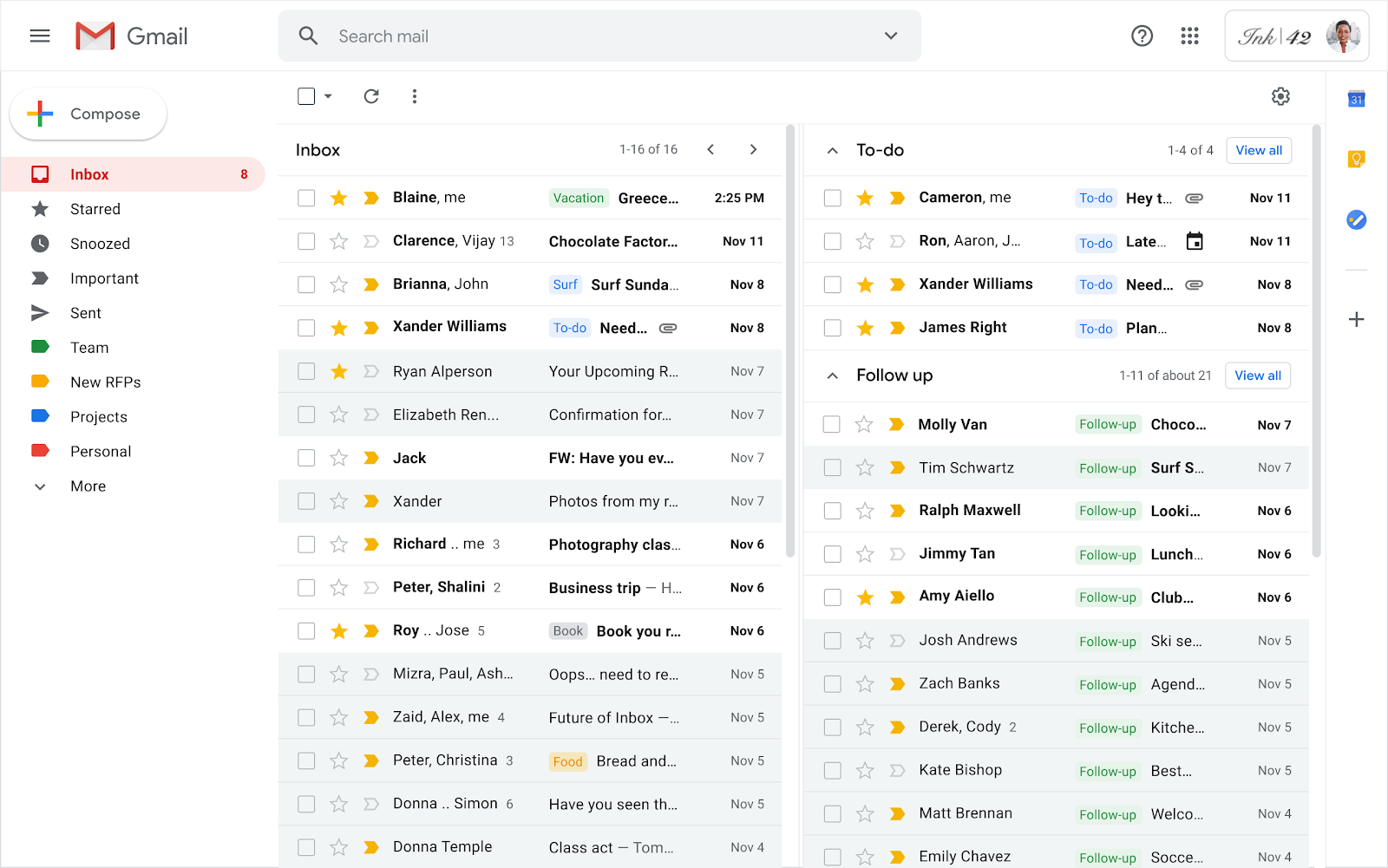
We’re updating the way multiple inboxes work in Gmail. Specifically, starting February 20, 2020, for Rapid release domains and March 5, 2020, for Scheduled release domains, we’ll enhance multiple inboxes to support independent scrolling, a unified toolbar, and adjustable width in right-side configurations.

In addition, starting on those dates, multiple inboxes will no longer support three-pane layouts with the preview pane (renamed “reading pane”) view. 

See the “Additional details” section below for more information on these changes.

Who’s impacted

End users

Why it’s important 

Multiple inboxes help you break out key emails, like important tasks or those from specific people, and make them visible alongside your main inbox in Gmail, in a completely customizable way. 

Additional details 

Split pane configurations no longer supported 
Beginning February 20, 2020, for Rapid release domains and March 5, 2020, for Scheduled release domains, multiple inboxes with preview pane (to be renamed “reading pane”) configurations will no longer be supported.

If you currently have multiple inboxes in an unsupported configuration, you will see a notification in Gmail informing you of this upcoming change. Once this change takes effect, the preview pane will turn off if you use multiple inboxes. If you want to continue using preview pane (i.e. reading pane), you’ll need to use an inbox type other than multiple inboxes. You can do this by going to Settings > Inbox > Inbox type.


Notification banner in Gmail

Inbox type settings in Gmail

Configure multiple inboxes and reading pane more easily
On these dates, we’ll also relocate the settings for multiple inboxes out of the “Advanced” tab and into the “Inbox” tab along with other inbox configurations to better align with user expectations.


Once these changes go into effect, you’ll be able to enable or disable the reading pane by clicking the gear icon and selecting Settings > Inbox > Reading pane. With reading pane view, you can open mail next to your list of conversations, making mail reading and writing faster while also providing more context. 


Reading pane settings in Gmail


Individual scroll bars for multiple inboxes, adjustable panels, and collapsible sections
Starting on these dates, when the right side configuration of multiple inboxes is enabled, each inbox will have an individual scroll bar. This will allow you to scroll in either inbox separately as needed so you can more flexibly navigate your email. Previously, you could only scroll both inboxes at once.

The divider at the right side between the inbox and the multiple inbox sections will become adjustable, allowing you to minimize or maximize each panel as needed. 

Also with this update, additional sections in multiple inboxes are now collapsible. 


A single action toolbar for multiple inboxes
There will also be one action toolbar across multiple inboxes. This will allow users to take actions across multiple sections and ensure that triage functionality and keyboard shortcuts work consistently. Currently, at the top of each inbox, there is a separate toolbar for each section in the bottom and top configurations, but no toolbar for any of the additional sections for the right-side configuration. Now, there will be one unified toolbar for the whole inbox in all configurations.

Getting started

Admins: There is no admin control for these features.

End users: Once these changes begin rolling out to your domain, the preview pane will turn off if you use multiple inboxes. If you want to continue using the preview pane, you’ll need to use an inbox type other than multiple inboxes. You can do this by going to Settings > Inbox > Inbox type.
Individual scroll bars, adjustable panels, collapsible sections within multiple inboxes, and the single action toolbar will be available by default.

Rollout pace


Availability

  • Available to all G Suite customers and users with personal Google Accounts


Update Feb 19, 2020: This post has been updated to reflect that backups will no longer count against your Drive storage quota for G Suite accounts after this feature rollout is complete. The rollout plan has been clarified to begin on March 4th and continue for several weeks. The post originally stated that backups currently do not count against G Suite storage quotas, and that the rollout would be completed by March 11th.


What’s changing 

Admins can now choose whether their Android users can back up data from third-party apps, such as WhatsApp, to their G Suite accounts. Previously, admins didn’t have specific controls for third-party app backups—all G Suite users who had Drive enabled could back up this data, and users without Drive enabled could not. With this launch, admins can choose whether their users can back up this data, regardless of whether they have Drive.

This backup feature is limited to WhatsApp at launch, but other apps could be added in the future. If WhatsApp data is backed up, it can be used to restore WhatsApp conversation and message history if a user gets a new phone or deletes WhatsApp data from the device (e.g. via a factory reset).

Before choosing to enable or disable the feature for some or all of your users, we recommend that you use our Help Center to learn more important details about managing 3rd-party app backups for your organization. Also note: 

  • Third-party app backups is an additional service, which is not covered under the G Suite Terms of Service. 
  • Once this feature rollout is complete, these backups will not count against G Suite storage quotas.
  • WhatsApp backups are only available for Android devices. 
  • Backups will automatically expire; WhatsApp backups that haven’t been updated for one year will be removed (learn more). 


Who’s impacted 

Admins and end users


Why it matters 

This gives admins more control over the content that’s stored in their domain. If enabled, third-party app backups can help users preserve and manage important data.


Additional details 


User experience of using and managing backups 
Users will see a link to Backups in Google Drive within the ‘Storage” section (see image below). This will contain their backed-up data. That data could include third-party apps such as WhatsApp (if enabled by their Admin with this control), as well as Android device backups. Users can delete these backups if they choose. Users cannot see the contents of these backups within Drive; they can only be used to restore data in third-party apps.

If admins turn third-party app backups off, users may be notified that their backups are not working properly. To avoid these notifications, the user can turn backups off on their device or back up their data to a different account on their device.

If admins have third-party app backups turned on but have Drive turned off, users may not be able to directly delete their backups through the Drive UI. Backups will continue to be deleted automatically upon expiration. You can also use our Help Center to find other ways to immediately delete backups


Getting started 

Admins: Starting on 5 February 2020, there will be a new setting in the Admin Console to control this feature at Admin console > Apps > Additional Google Services > Third-Party App Backups. The setting will initially have the same ON/OFF state as the Google Drive service, and can be controlled at the domain, OU, or group level. Visit the Help Center to learn more about managing backups for your organization.

Admin Controls for third-party app backups 

End users: This feature may be available to end users depending on the Admin control. If enabled, backups can be found and managed by users at Drive > Storage > Backups in their linked G Suite accounts. Use the Help Center to find out more about managing backups in Google Drive.

Users can find Backups in the ‘Storage’ section of Google Drive 


The new Backups section 


Rollout pace 


  • Rapid and Scheduled release domains
    • Admin console setting: This setting will appear in the Admin console sometime between February 5 and 12. 
    • User impact: User impact: G Suite users may see the “Backups” view starting on February 5 (Rapid Release) and February 19 (Scheduled Release), but no new policies will be enforced until March 4 or later. These policies will start to go into effect for users on March 4 and rollout to all users over several weeks.

Availability 


  • Available to all G Suite customers 

Resources 


Check out the latest "What's New in G Suite" launch recap (pdf) for a roundup of all G Suite launches from January 2020.

Archive and translated versions (coming soon for January issue)

Stay up to date with G Suite launches

Quick launch summary 

We’re changing the default scope for delegated admins with the “Service Settings” privilege. As a result, some admins may need to be re-granted access to the security center.

Previously, when an admin was assigned the “Service Settings” privilege, the “Security Center” privilege was also checked by default. Now, the “Security Center” must be granted specifically. As a result of this change, some delegated admins may lose their security center privileges. If this happens to an admin that should have access to the security center, a Super Admin of the domain can grant them (or the administrator role they are assigned) permission at Admin console > Admin roles. 


Getting started 


Rollout pace 


Availability 


  • Available to all G Suite customers

Resources