This official feed from the Google Workspace team provides essential information about new features and improvements for Google Workspace customers.


Quick summary

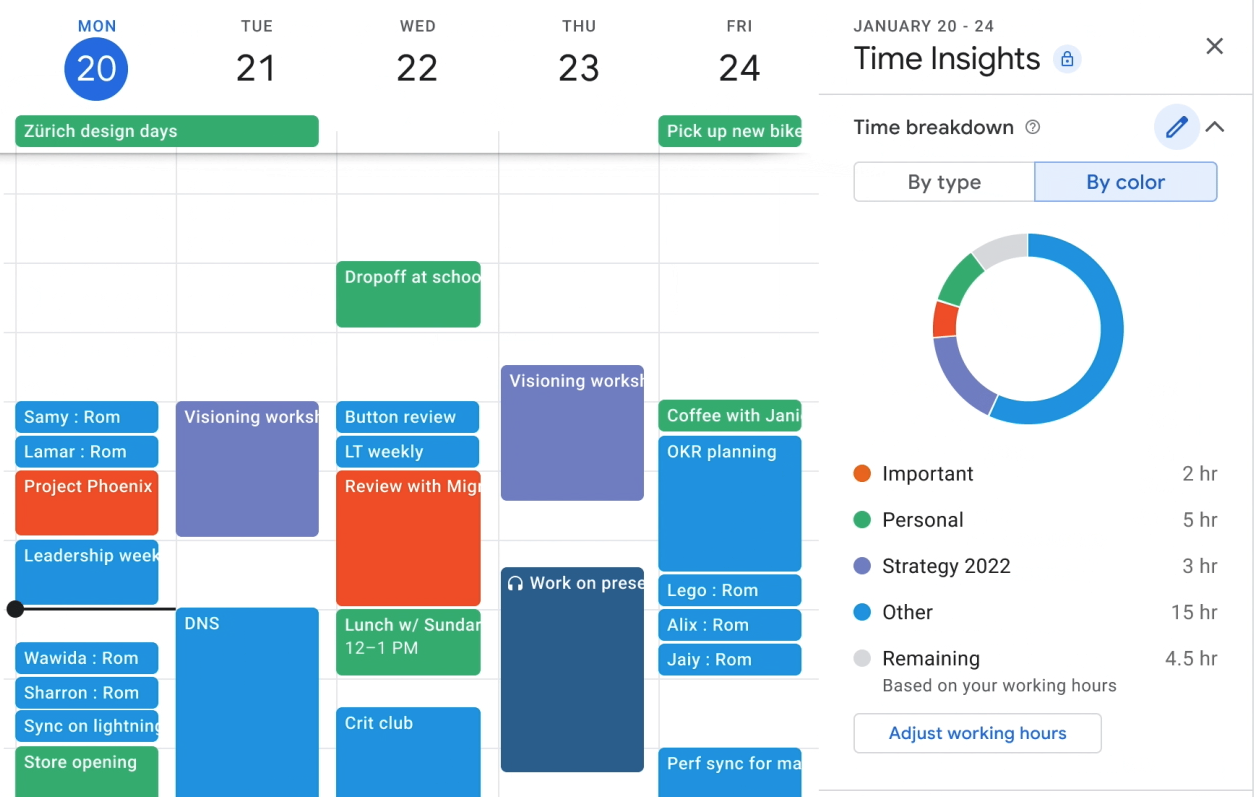
In 2021, we launched Time Insights, a feature that gives you the ability to better understand how you’re spending your time in Google Calendar. Starting today, you can categorize your time by naming and assigning a corresponding color label to an event within Time Insights in Calendar

We hope this customizable breakdown feature will allow you to more easily track time spent on specific activities or strategic areas, such as project work, staff meetings, or meetings with specific colleagues and stakeholders. 


Getting started 

  • Admins: This feature will be ON by default and can be disabled at the domain/OU level. Visit the Help Center to learn more about turning Time Insights on or off for your organization
  • End users: 
    • To create a color label in the Time insights panel, navigate to Time breakdown > select By color > click on Add a Label. 
    • To add a color label to an event, right-click on the event in your Calendar grid. Alternatively, click Edit > change the event color. 
    • To see your Time Insights, click on Time insights in the left side panel > click on More insights. 
    • Visit the Help Center to learn more about Time Insights in Calendar

Rollout pace 

  • Rapid Release domains: Extended rollout (potentially longer than 15 days for feature visibility) starting on August 16, 2022 
  • Scheduled Release domains: Extended rollout (potentially longer than 15 days for feature visibility) starting on August 30, 2022 

Availability 

  • Available to Business Standard, Business Plus, Enterprise Standard, Enterprise Plus, Education Plus and Nonprofits customers 
  • Not available Google Workspace Essentials, Business Starter, Enterprise Essentials, Education Fundamentals, Education Standard, the Teaching and Learning Upgrade, and Frontline, as well as legacy G Suite Basic and Business customers 
  • Not available to users with personal Google Accounts 
Resources 


What’s changing 

We’re introducing two enhancements on Google Meet hardware devices for the “Frame people” feature: 

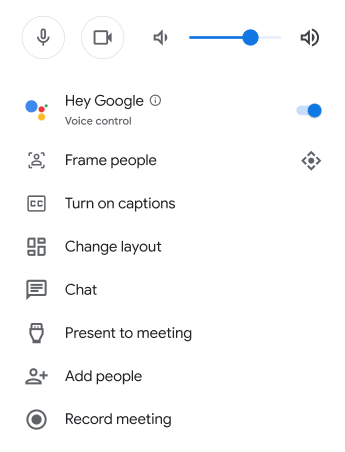
  • The “Frame people” feature is now more easily discoverable and can be accessed in a meeting from the touch panel in fewer steps. Previously, this command required two steps by first selecting the camera control icon and then selecting “Frame people.” Now, it’s immediately visible on the touch panel. 


Note that you can still access the Camera control pane next to the new “Frame people” button. 

Camera control button


With this enhancement, we’ve also solved a recent bug impacting the auto framing capability for some Google Meet hardware devices. The auto framing functionality has been restored to impacted devices with improved reliability and performance. 


Who’s impacted 

End users 


Why it’s important 

Being able to see people in a meeting room clearly is essential for improving the meeting experience in today's hybrid work environment. With the increased visibility of the “Frame people'' button on the Google Meet hardware touch panel, users can more easily and quickly adjust their camera to optimize the viewing experience for all participants. 


Getting started 

  • End users: No action required, these updates will be available automatically. Note: This feature is not available when other devices, such as a webcam, are plugged into a meeting hardware kit. 
  • Admins: There is no admin action required. 


Rollout pace 


Availability 

  • Available to all Google Workspace customers, as well as G Suite Basic and Business customers 
  • Available for all supported Google Meet hardware devices that have not yet reached their auto-update expiration date 

Resources

Quick summary 

Site editors can now insert stylized social media links into pages within their site. This update enables you to more conveniently connect site visitors with additional information and content on your social channels. 


Getting started 

  • Admins: There is no admin control for this feature. 
  • End users: In a Site, navigate to Insert > Social Links. Supported links will automatically generate the corresponding icon or you can upload your own next to each link. You can then drag the tile to the desired location on a page and adjust the styling, size, color, and alignment. Visit the Help Center to learn more about inserting social links in a Site

Rollout pace 


Availability 

  • Available to all Google Workspace customers, as well as legacy G Suite Basic and Business customers 
  • Available to users with personal Google accounts 

Resources 

Quick summary 

Google Meet can remove background noises such as typing, construction sounds, or background chatter. Noise cancellation helps make video calls more productive by reducing distractions that can divert attention away from the content of the meeting, so you can stay focused on the conversation. 


The voice indicator now shows how much noise is being removed. If you see the ring expanding, Meet is reducing the background noise. 


If you don't see the voice indicator, no audio (voice or noise) is coming from you.


A burst of noise is being filtered out while you speak, and other participants will only hear your voice. This visual cue is triggered at most once per meeting.


Noise is being filtered out on a continuous basis while you speak, and other participants will only hear your voice. The noise level is reflected by the ring size.


Getting started 

  • Admins: There is no admin control for this feature. 
  • End users: The noise indicator is displayed when noise cancellation is enabled. Visit the Help Center to learn how to enable noise cancellation

Rollout pace 


Availability 

  • Available to Google Workspace Business Standard, Business Plus, Enterprise Essentials, Enterprise Standard, Enterprise Plus, Education Plus, and Workspace Individual customers. 
  • Not available to Google Workspace Essentials, Business Starter, Education Fundamentals, Frontline, and Nonprofits, as well as G Suite Basic and Business customers. 
  • Not available to users with personal Google Accounts. 

Resources 

Quick summary 

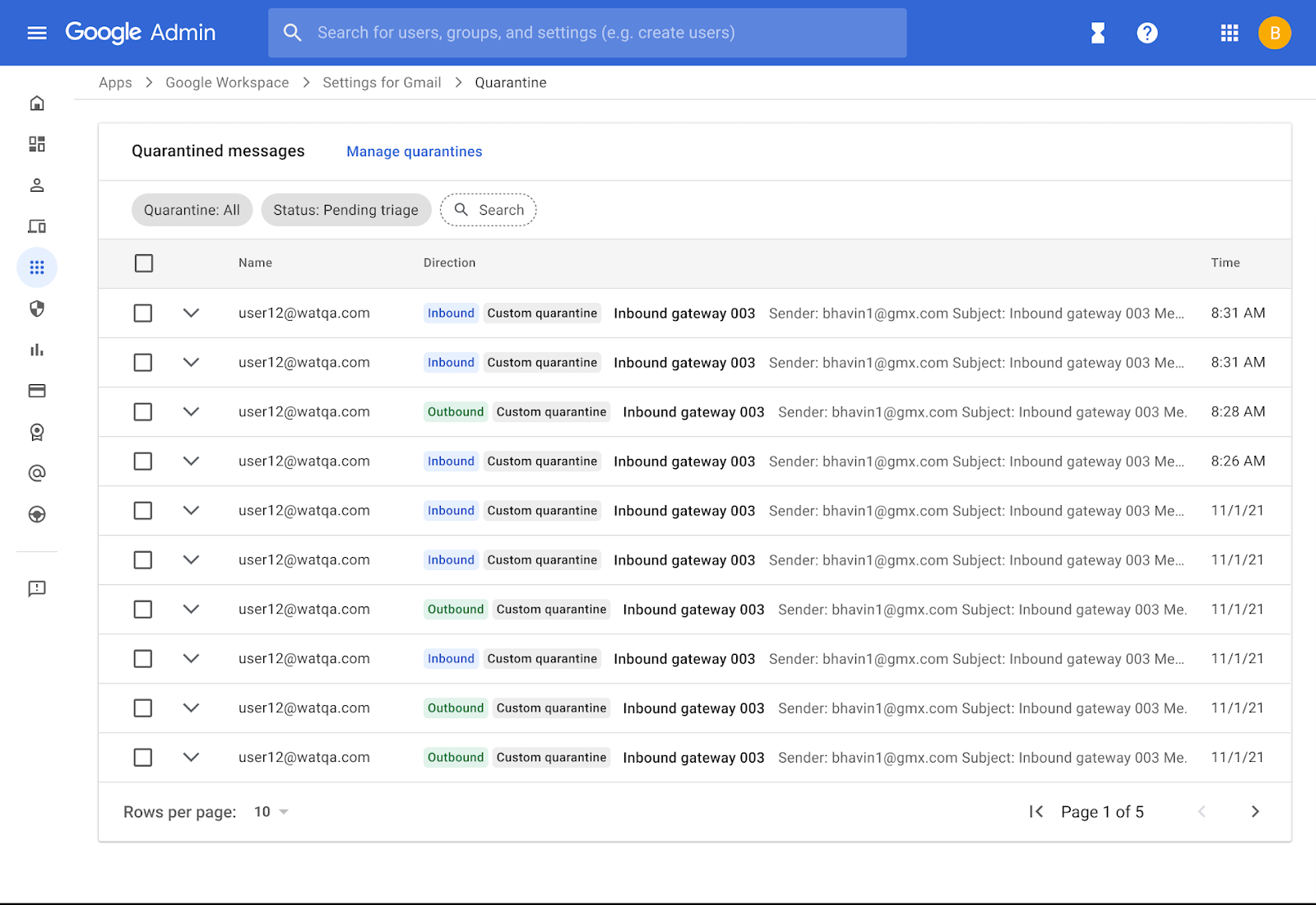
In the coming weeks, you will see a new user interface when using the email quarantine tool. This update will bring the email quarantine experience inline with other tools in the Admin console, making it more intuitive to navigate and use. Quarantines help minimize data loss, protect confidential information, and manage message attachments. 


Some improvements you’ll notice are: 
  • A collapsible side panel for filtering quarantines 
  • A paginated table view displaying quarantines with custom names row by row 
  • The option to view the original, raw content of a selected message for easier referencing. 

Quarantines with custom names are displayed row by row


Original, raw content can be viewed for each quarantine


Getting started 

  • Admins: The admin quarantine can be found in the Admin console at Apps > Google Workspace > Gmail > Manage Quarantines. Visit the Help Center to learn more. Visit the Help Center to learn more. 
  • End users: There is no end user impact. 

Rollout pace 


Availability 

  • Available to all Google Workspace editions, as well as legacy G Suite Basic and Business customers 

Resources