This official feed from the Google Workspace team provides essential information about new features and improvements for Google Workspace customers.


What’s changing 

We’re introducing a new ‘Follow’ feature that allows you to collaborate with colleagues in real-time on Google Slides. Building upon the existing feature to see what slide your colleague is on, you can now click on a collaborator’s avatar in the Slides toolbar to jump to whatever slide they are on, and continue to move with them as they navigate and make changes to a presentation. 

Getting started 

  • Admins: There is no admin control for this feature. 
  • End users: This feature will be ON by default. To follow a collaborator, click their avatar in the Slides toolbar. If you hover over a followed avatar, a “Following” badge will appear. To stop following a collaborator, click on their avatar again. 
    • You will also stop following the collaborator if: 
      • The collaborator refreshes or leaves the presentation. 
      • You make any edits to the presentation. 
      • You click a different slide. 
      • You enter Slideshow mode. 
    • Visit the Help Center to learn more about following a collaboration on Google Slides

Rollout pace 

Availability 

  • Available to all Google Workspace customers, as well as legacy G Suite Basic and Business customers 
  • Available to users with personal Google Accounts 

Resources 

What’s changing 

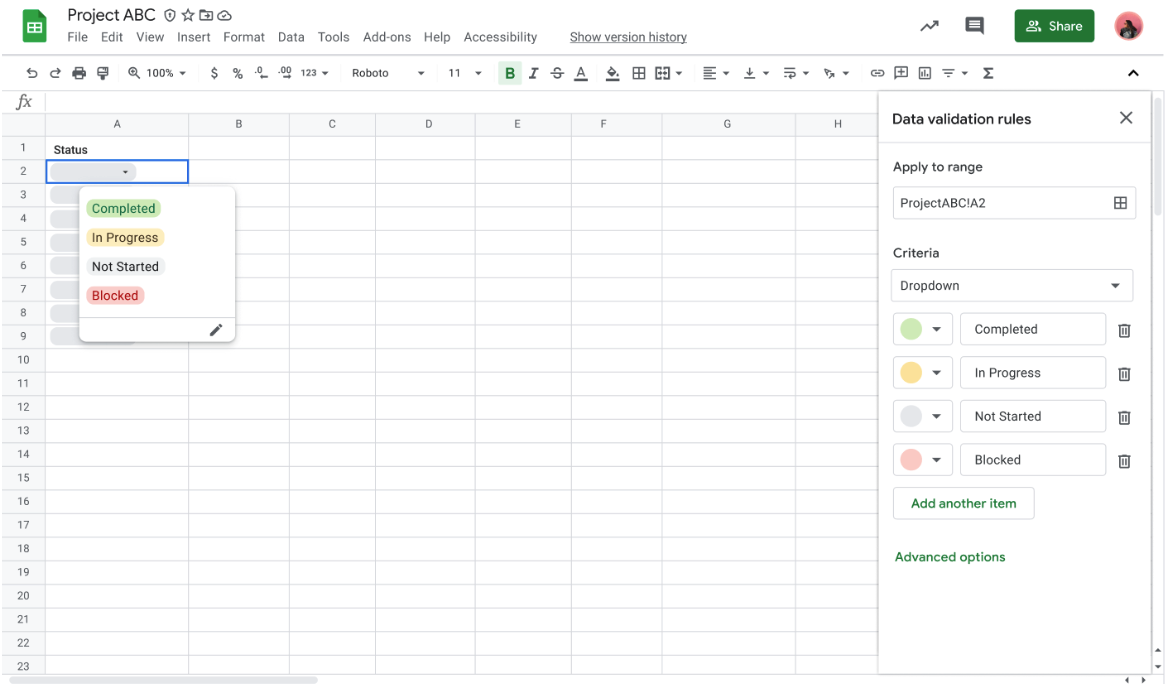
Today we’re adding dropdown chips in Google Sheets. This is the latest smart canvas feature highlighting the next evolution of collaboration for Google Workspace. Dropdown chips are a custom formatting feature that is already available in Docs, and they enable you to easily indicate statuses or various project milestones outlined in your Sheet. 

Additionally, we’ve modified the workflow for creating and managing all data validation rules, including dropdown chips and checkboxes. You can now view and edit all existing rules that have been created in a specific Sheets tab and create additional rules from a new sidebar view. This update improves the consistency of your overall Sheets experience as this now mirrors the workflows for creating conditional formatting, protected ranges, and named ranges rules. 

Getting started 

  • Admins: There is no admin control for this feature.
  • End users: This feature will be ON by default. You can insert a dropdown chip by selecting Insert > Dropdown or by typing “@” followed by “dropdown”. Visit the Help Center to learn more about inserting smart chips in your Google Sheets.

Rollout pace 


Availability 

  • Available to all Google Workspace customers, as well as legacy G Suite Basic and Business customers 
  • Available to users with personal Google Accounts 
Resources 

What’s changing

In 2018, we launched the Content manager role, making it easier to manage files in shared drives. Currently, content managers have the ability to edit, reorganize, and delete shared drive content, but they cannot share folders in shared drives. 

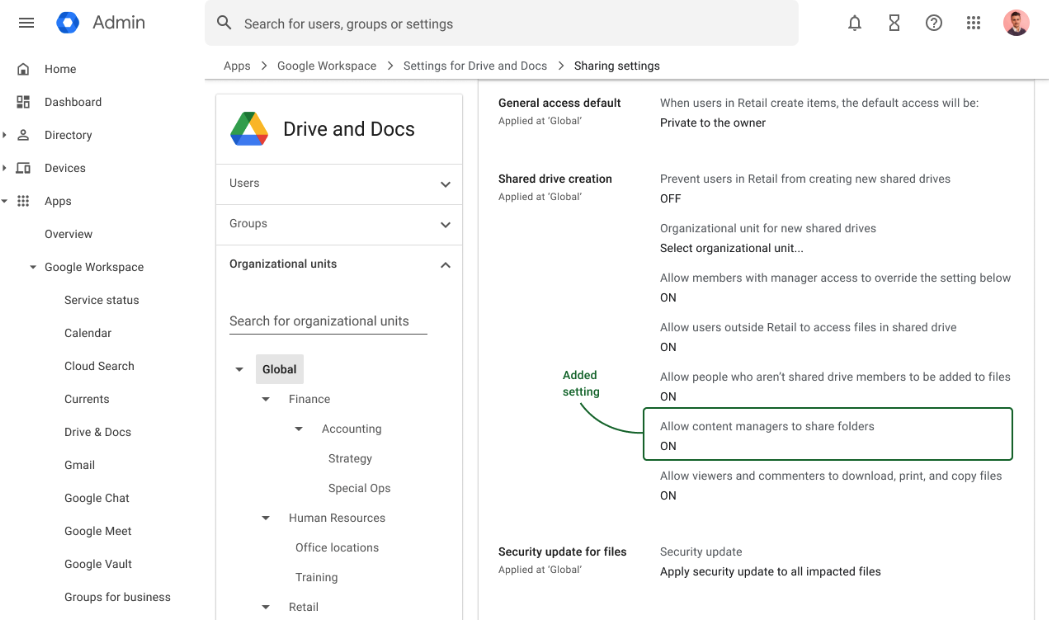
Starting today, admins will see a new shared drive setting that can be enabled or disabled to give content managers the ability to share folders in shared drives. 

In February 2023, all content managers will have the ability to share folders by default. If you’d like this feature to remain off for end users, disable the setting now. 


Who’s impacted 

Admins and end users 


Why it matters 

Enabling content managers to share folders is a highly requested feature that will help organizations better manage access to their data. 


Additional details 

We will provide an update in February 2023 with the exact date that all content managers will have the ability to share folders by default. 


Getting started 

  • Admins: 
    • This setting is currently ON by default. To disable the setting for content managers to share folders, go to the "Sharing settings" in the Drive and Docs section of the Admin Console > scroll to the "Shared drive creation" section > change the "Allow content managers to share folders" setting to OFF. 
      • Note: If enabled, Content managers will be able to share folders starting in February 2023. 
    • Visit the Help Center to learn more about managing shared drives as an admin. 
  • End users: If enabled by your admin, content managers can share folders starting February 2023. Visit the Help Center to learn more about shared drives

Rollout pace 

Admin controls: 
End user setting: 

Availability 

  • Available to Google Workspace Essentials, Business Standard, Business Plus, Enterprise Essentials, Enterprise Standard, Enterprise Plus, Education Fundamentals, Education Plus, Education Standard, the Teaching and Learning Upgrade, and Nonprofits, as well as legacy G Suite Business customers 
  • Not available to Google Workspace Business Starter, Frontline, and legacy G Suite Basic customers 
  • Not available to users with personal Google Accounts 
Resources 

What’s changing 

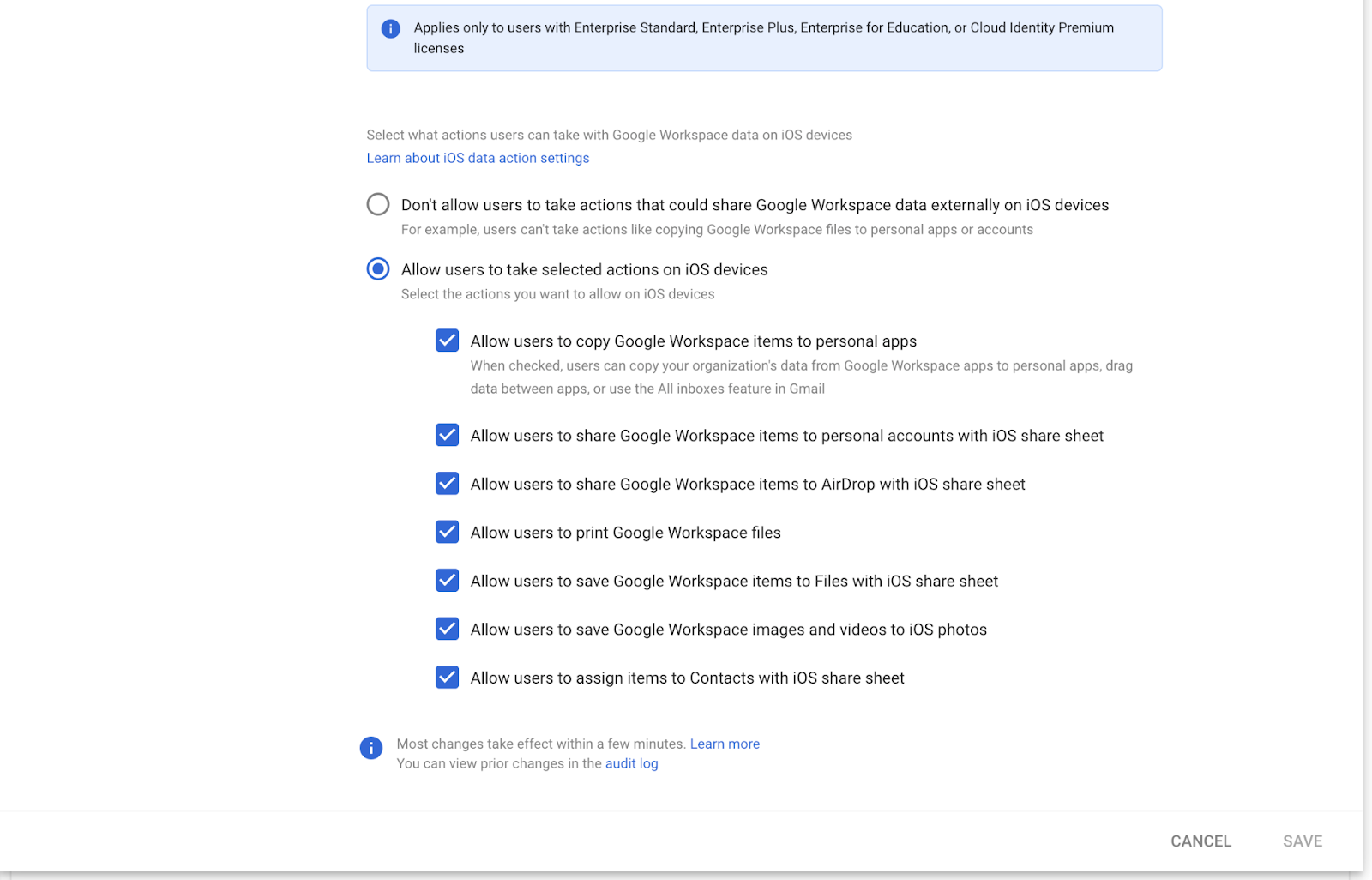
In 2020, we released several data exfiltration protections for iOS devices. Today, we’re announcing the next set of enhancements for data exfiltration protections for iOS. We’re expanding these security controls to give admins more ways to protect sensitive company data on iOS devices. 


Admins can now turn the following actions on or off for Google Workspace data: 
  • Copying Google Workspace files and data to personal apps 
  • Sharing Google Workspace data to personal accounts via AirDrop and the iOS share sheet 
  • Air Printing Google Workspace files 
  • Saving Google Workspace items to files with the iOS share sheet 
  • Saving Google Workspace images/videos to iOS photos 
  • Assigning items from Google Workspace to Contacts with the iOS share sheet. 


Who’s impacted 

Admins and end users 


Why it’s important 

This is the next step in ensuring we continue to enhance data protections for Google Workspace data and how that information is stored, shared, and used across the iOS devices within your organization. Similar protections are already available on Android devices through Work Profiles


Getting started 

  • Admins: These settings can also apply to any OU level throughout the organization, to scale your policy settings to any iOS mobile device within your organization. These settings can be configured in the Admin console under Devices > Mobile and endpoints > iOS settings > Data Sharing. Visit the Help Center to learn more about data protection on iOS devices


  • End users: There is no end-user setting for this feature. Restricted actions are not shown except for “Save to files”, in which case a dialog pops up notifying the user that this action is restricted. 

Rollout pace


Availability 

  • Available to Google Workspace Enterprise Standard, Enterprise Plus, Enterprise for Education, and Cloud Identity Premium customers. 

Resources 

New updates 

There are no new updates to share this week. Please see below for a recap of published announcements. 


Previous announcements


The announcements below were published on the Workspace Updates blog earlier this week. Please refer to the original blog posts for complete details.


Improved meeting quality when joining on virtual machines 
If you use a Virtual Desktop Interface (VDI) such as Citrix or VMWare to join Google Meet calls, you’ll notice an increase in video and audio quality. Meet will now detect whether you’re joining from a VDI and automatically adjust for the best performance. | Learn more


Use the Cloud Search Query API to set Suggest Filters to enhance Cloud Search results 
It’s now easier to configure and use Cloud Search search filters and facets with multiple enhancements to our existing functionalities. With this launch, you can use the Cloud Search Query API to configure new additional capabilities. | Available to Google Cloud Search Customers only. | Learn more.


For a recap of announcements in the past six months, check out What’s new in Google Workspace (recent releases).