This official feed from the Google Workspace team provides essential information about new features and improvements for Google Workspace customers.


[Update - February 21, 2024]: Bard is now Gemini — for more information, see the latest article on the Workspace Updates blog and our Help Center for more information on turning Gemini on or off for your users.


What’s changing 

Earlier this year, we announced Bard, an early experiment by Google that lets you collaborate with generative AI. As a creative and helpful collaborator, Bard can supercharge your imagination, boost your productivity, and help you bring your ideas to life. 


In the coming days, Google Workspace admins will be able to turn access to Bard on for their users, in the Admin console under Apps > Additional Google services > Early Access Apps.


Note: At first, Bard will be the only service managed by the Early Access Apps control. Over time, we may be adding other services under this control.
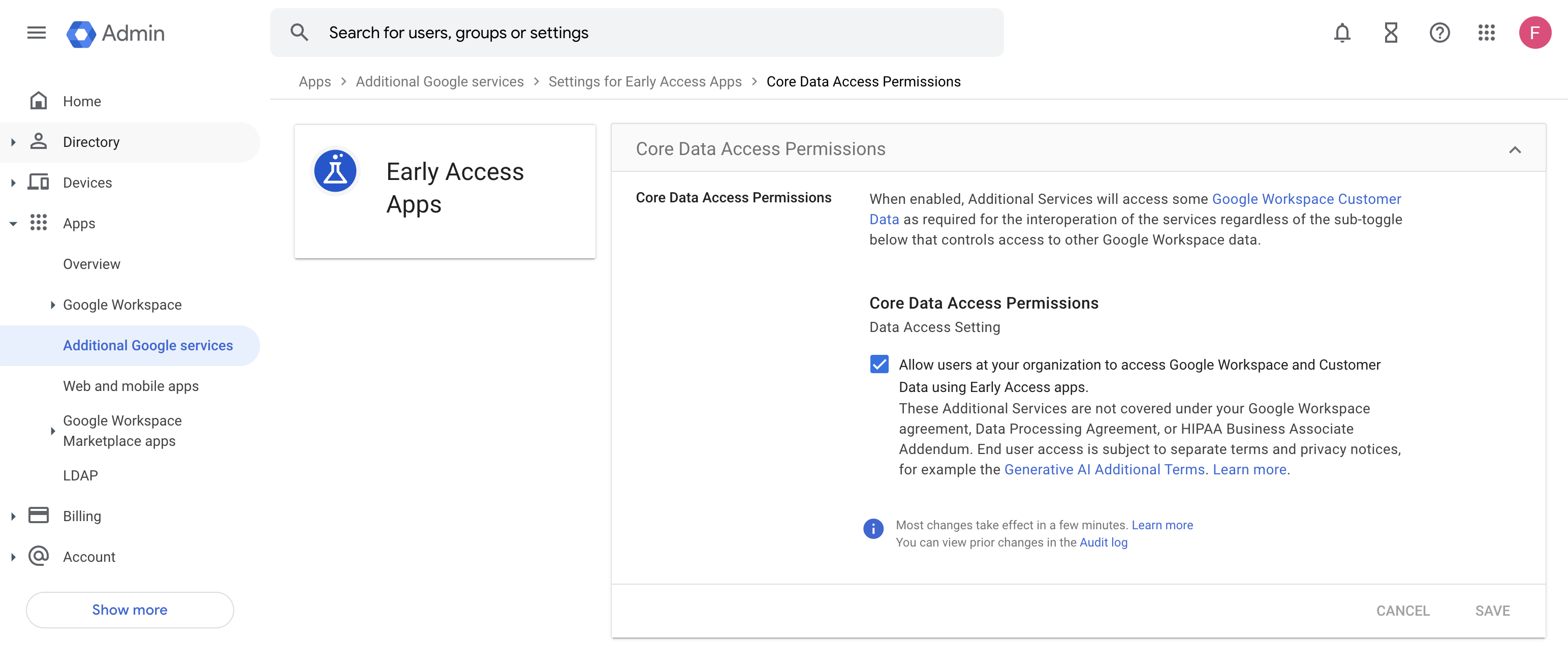
Turning Early Access Apps on or off in the Admin Console


Who’s impacted 

Admins and end users 


Why it’s important 

At introduction, Bard was available to users with personal Google Accounts. Beginning today, Workspace admins will have the option to open up access to Bard for their end users through the newly introduced Early Access Apps control. Note that Bard is separate from the AI powered innovations we’re working on for Google Workspace — stay tuned to the Workspace Updates blog for more information about Workspace specific features.


Additional details 

Regional Availability 
The admin control to enable or disable access to Bard will be available for all Google Workspace customers, even if Bard isn’t available in your country yet. That means that even if Early Access Apps are turned on for your organization, users located in countries in which Bard is not available will not be able to access the service.


Getting started


  • Admins
    • This feature will be OFF by default and can be enabled at domain, OU, or group level. Visit the Help Center to learn more about turning Early Access Apps on or off for users.
    • Access to core services in Google Workspace by Early Access Apps is off by default
    • Note: Services and features managed by the Early Access Apps control are Additional Services and are not covered under your Google Workspace agreement, Data Processing Agreement, or HIPAA Business Associate Addendum. When you turn on the Early Access Apps control, your organization’s end users will gain access to new and experimental features and services — visit our Help Center for more details.

  • End users: If enabled by your admin, visit the Help Center to learn more about using Bard.


Rollout pace


Availability

  • Available to all Google Workspace customers, as well as legacy G Suite Basic and Business customers
  • Not available for any Google Workspace for Education accounts designated as under 18. Use this article in our Help Center for more information.

Resources


What’s changing

Oftentimes Google Chat conversations cover a wide variety of topics in a short period of time, causing you to potentially lose the context of a Chat sent earlier in the message stream. 


To improve your web and mobile Chat experience in scenarios such as this, we’re introducing a feature that allows you to quote a previous message when sending a reply in a direct message, group message, or space (if configured with in-line threading). 
Quote a previous message in Google Chat

Who’s impacted 

End users 

Why you’d use it 

This feature helps provide context to a message response by allowing you to directly reference a previous message. People may use message quoting when they want their response to show up in the main message stream, compared to in-line threading, where message responses are shown in a separate thread. 

Getting started 

  • Admins: There is no admin control for this feature. 
  • End users: When you quote a message, the quote itself is a link that returns to the original message that was quoted. Visit the Help Center to learn more about quoting a message in your reply

Rollout pace 

Availability 

  • Available to all Google Workspace customers, as well as legacy G Suite Basic and Business customers 
  • Available to users with personal Google Accounts 

Resources 

What’s changing 

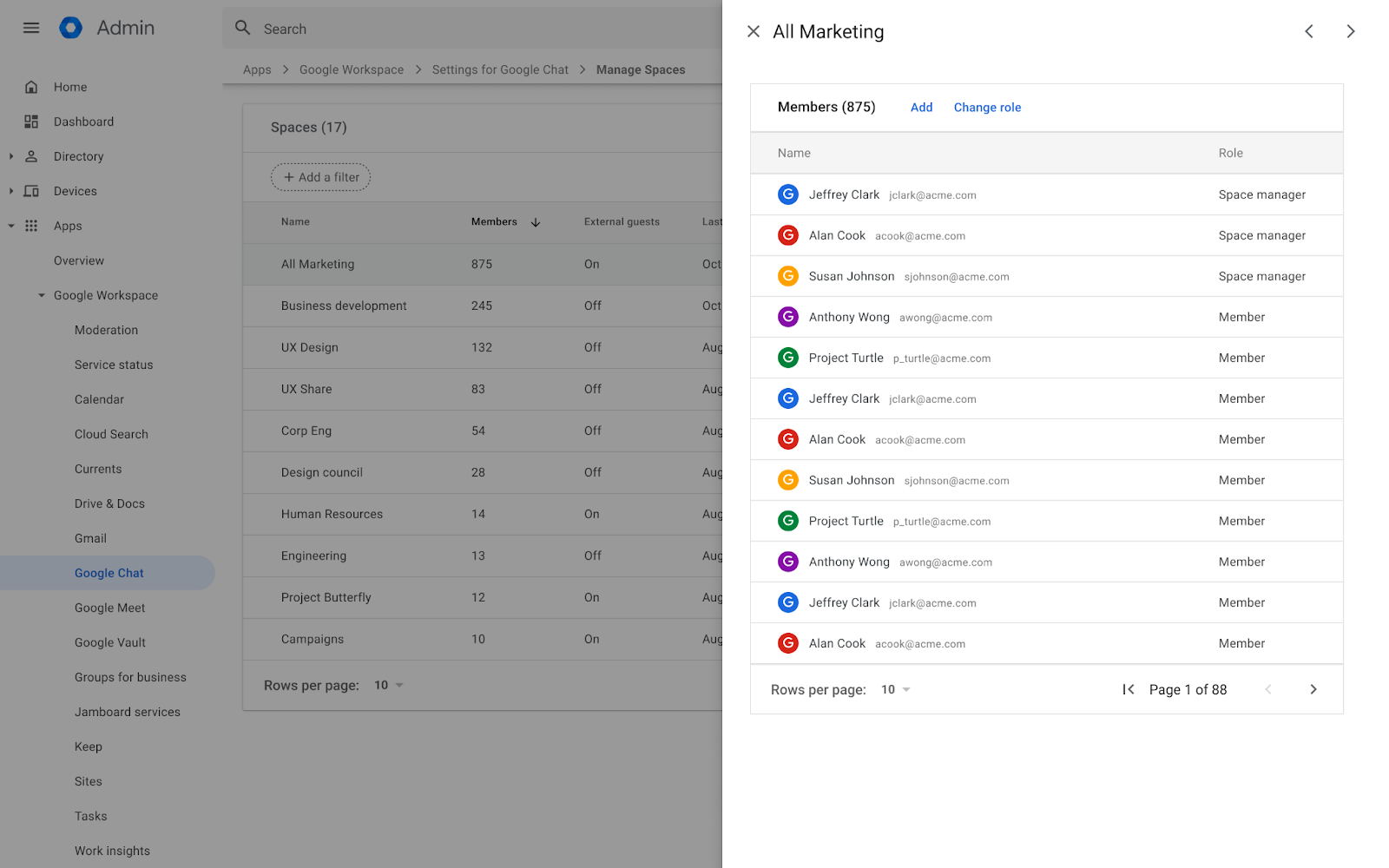
We’re introducing a new section in the admin console dedicated to managing spaces in Google Chat. Here, admins can see a list of all spaces in their domain, the members of those spaces, and take actions such as adding members or changing a members role. 


View all of the spaces in your organization

See all members, including space managers, for a particular space

Adding members to a space via the Space Management tool


Assigning roles to a member via the Space Management tool


Add new members to a space and specify their role.


Who’s impacted

Admins 


Why it’s important 

Spaces in Google Chat are an essential part of collaboration and community building across organizations of all sizes. As such, it’s important for admins to easily view and manage their spaces to keep them productive and safe. You can look up specific spaces based on it’s ID or name and take actions such as reviewing members of each individual space, adding members or assigning new space managers. 

Further, the space management tool gives admins the information that will allow them to better understand how spaces are used in their organization: 
  • The number of members in the space 
  • Whether conversation history is on or off for the space 
  • Sharing permissions for a space 
  • Active spaces and spaces with no recent activity 

Additional details 

This feature is available for all super admins by default. Delegated admins need to have the “Manage chat and space conversations” role to access space management — visit the Help Center to learn more about administrator roles

Getting started 
  • Admins: In the Admin console, navigate to Apps > Google Workspace > Settings for Google Chat > Manage spaces. Visit the Help Center to learn more about managing spaces in the Admin console


  • End users: There is no end user action required. 

Rollout pace 


Availability 

  • Available to all Google Workspace customers 

What’s changing 

In 2021, we introduced Brand Indicators for Message Identification (BIMI) in Gmail, a feature that requires senders to use strong authentication and verify their brand logo in order to display a brand logo as an avatar in emails. 

Building upon that feature, users will now see a checkmark icon for senders that have adopted BIMI. This will help users identify messages from legitimate senders versus impersonators. 
Expanding upon Gmail security with BIMI

Who’s impacted 

Admins and end users 


Why it matters 

Strong email authentication helps users and email security systems identify and stop spam, and also enables senders to leverage their brand trust. This increases confidence in email sources and gives readers an immersive experience, creating a better email ecosystem for everyone. 


Getting started 

  • Admins: 
    • Visit the Help Center to learn more about setting up BIMI
    • To learn more about BIMI and see the latest news, visit the working group’s website
    • To take advantage of BIMI for your outgoing emails to Gmail and other platforms, ensure that your organization has adopted DMARC, and that you have validated your logo with a VMC, issued by a Certification Authority such as Entrust or DigiCert. 
  • End users: There is no end user setting for this feature. 

Rollout pace 


Availability 

  • Available to all Google Workspace customers, as well as legacy G Suite Basic and Business customers 
  • Available to users with personal Google Accounts 

Resources 

What’s changing

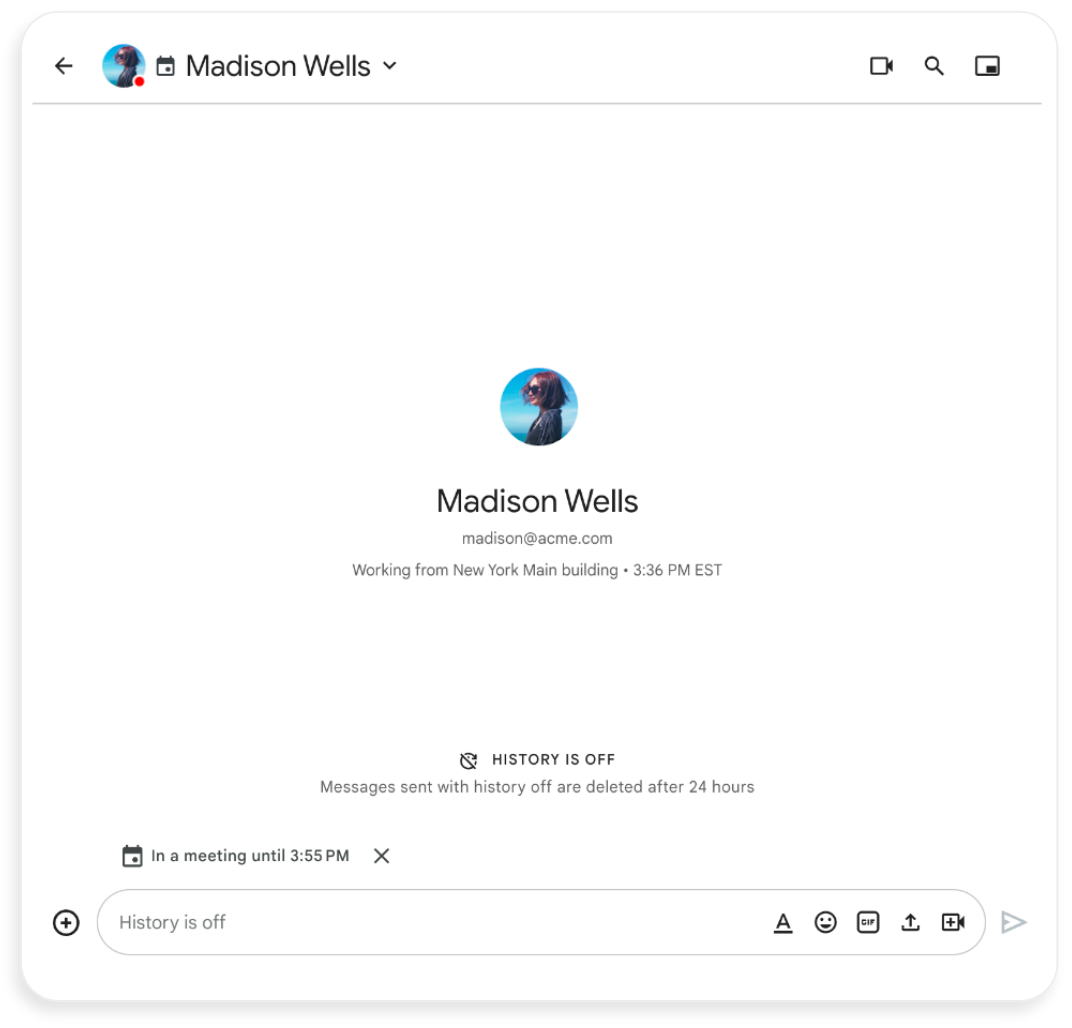
Last year, we introduced the ability to see additional Google Calendar statuses like “In a meeting” or “In focus time” in Google Chat. Starting today, Chat statuses will include even more information, such as: 
  • How much longer someone is in a meeting or focus time 
  • If someone has an upcoming commitment within the next 10 minutes 
  • If someone has an upcoming out of office event within the next business day 
The Chat status will automatically disappear once you send a message to someone or you can manually dismiss it. However, if their status changes, an updated status will reappear. 


Additionally, you can see the current working location and local time zone set by your colleagues when sending a new message to them in Chat. 
Providing greater visibility with additional Google Calendar statuses in Google Chat

Who’s impacted 

Admins and end users 


Why you’d use it 

This feature gives you a better understanding of others’ availability, helping you plan when to reach out and collaborate. If someone is currently unavailable, you now have a more accurate picture of their response time. 


Additional details 

This feature will be rolling out to mobile devices in the coming months. 


Getting started 


Rollout pace 

Availability 

  • Available to all Google Workspace customers, as well as legacy G Suite Basic and Business customers 
  • Not available to users with personal Google Accounts 

Resources