
Building upon our recent updates to Google Keep on Android devices, such as multi-instance support and the single note widget, we’re adding rich text formatting options to new notes on Keep. This highly requested feature enables you to customize and add emphasis to your text through bolding, underlining, italicizing, and heading styles.
You will be able to access rich text formatting in existing Keep notes on Android devices in the coming weeks.
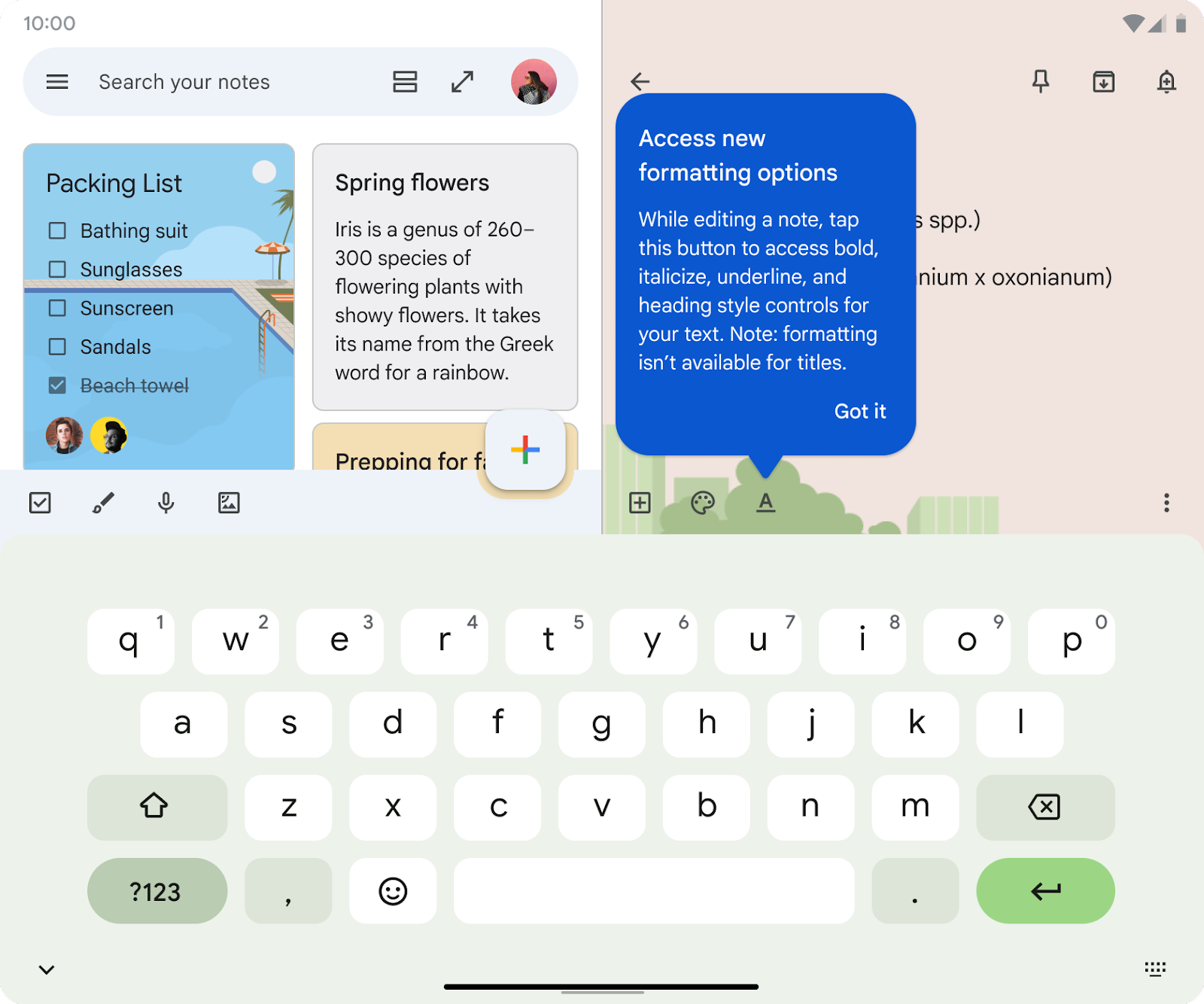
Getting started
Admins: There is no admin control for this feature.
Through the app access control settings, we’re making it easier for Google Workspace for Education admins to control how third-party apps access their organizations' Google data when users sign-in using their Google Workspace for Education accounts.
Users designated as under 18 using the age-based access setting are required to request access to apps that aren’t already configured by admins with a trusted, limited, or blocked access setting.
All Google Workspace for Education Admins must review and confirm access settings for third-party configured apps that are currently accessible to your users by Oct 23, 2023 in order for users designated as under 18 to maintain access to those third-party apps. You’ll have the option to allow users designated as under 18 to skip requesting access for all unconfigured apps that only ask for basic profile information for authentication purposes. These apps will be accessible for users designated as under 18 without further configuration on your part.
Who’s impacted
Admins, end users, and developers
Why it matters
Third-party app settings are important for protecting users’ data. We are providing enhanced app access controls to manage access to third-party applications for users designated as under 18. Google Workspace for Education Admins are required to confirm third-party app settings for third-party apps currently accessible by users in their institution by October 23, 2023 to avoid disrupting access to third-party applications for users designated as under 18.
Additional details
If you’d like to set different levels of access for specific sets of users, you can now configure third-party app access by organizational units.
Getting started
Admins:
To confirm access settings for third-party apps or review third-party apps requested by users designated as under 18, go to the Admin Console > navigate to the App access control card > click Review apps for apps you want to make accessible to users designated as under 18 > click Configure access on the selected app. You can also get started with the guided experience here.
Beginning today, you can join a client-side encrypted meeting directly from the Google Meet and Calendar apps.
Client-side encryption gives users direct control of their encryption keys and the identity service that authenticates those keys. Further, client-side encryption ensures that Google cannot access audio and video content under any circumstances. Our original announcement has more information about client-side encryption in Meet.
Available to Google Workspace Enterprise Plus, Education Standard, and Education Plus customers hosting client-side encrypted calls
Not available to Google Workspace Essentials, Business Starter, Business Standard, Business Plus, Enterprise Essentials, Education Fundamentals, The Teaching and Learning Upgrade, Frontline, and Nonprofits customers
We’re adding a new Workday app for Google Chat that allows you to perform quick actions in Workday, such as requesting time off, filing expense reports and looking up colleague's information, all without leaving Google Chat.
End users: If allowed by your admin, you’ll be able to install Google Chat apps using the “New chat” button in Google Chat. The apps you install will appear in the Chat conversation list.
Rollout pace
This feature is available now for all users.
Availability
Available to all Google Workspace customers and users with personal Google Accounts
Previously, if a Microsoft Outlook user invited a Google Calendar user to a meeting event, the Outlook user’s display name would not appear at all in the list of meeting attendees on Google Calendar. Starting today, we’re updating this experience so that the Outlook user who organized the meeting is listed amongst the other meeting attendees in Calendar as the meeting organizer.
Getting started
Admins and end users: No action required as you’ll automatically see these updates. Visit the Help Center to learn more about Calendar Interop.
In the Google Cloud Community, discuss the latest features with Googlers and other Google Workspace admins like you. Learn tips and tricks that will make your work and life easier. Be the first to know what's happening with Google Workspace.
On the “What’s new in Google Workspace?” Help Center page, learn about new products and features launching in Google Workspace, including smaller changes that haven’t been announced on the Google Workspace Updates blog.
Discover how a diverse range of organizations, from small businesses and nimble startups to globally recognized Fortune 500 corporations, leverage the collaborative power of Google Workspace. Explore examples of how teams of are streamlining workflows and driving productivity by utilizing Google-Workspace.