2024. február 2., péntek
3 New updates
Unless otherwise indicated, the features below are available to all Google Workspace customers, and are fully launched or in the process of rolling out. Rollouts should take no more than 15 business days to complete if launching to both Rapid and Scheduled Release at the same time. If not, each stage of rollout should take no more than 15 business days to complete.
New ways to work with filters in Connected Sheets for Looker and Connected Sheets for BigQuery
- With Looker: Connected Sheets for Looker users will now be able to see whether Looker-defined filters, always_filters and conditionally_filters, are applied in their Google Sheets. | Rolling out to Rapid Release domains and Scheduled Release domains now. | Available to all Google Workspace customers, Google Workspace Individual subscribers, and users with personal Google accounts. | Learn more about always_filter and conditionally_filter in Looker.
- With BigQuery: Connected Sheets for BigQuery users can now right-click any value in the Connected Sheets preview and filter rows in the preview on that specific value. As a result, a new query will be sent to BigQuery to re-fetch the preview. This new option provides an additional way to easily explore data in the Connected Sheets preview for BigQuery. | This is now available to all Google Workspace customers, Google Workspace Individual subscribers, and users with personal Google accounts. | Learn more about sorting & filtering BigQuery data in Google Sheets.
Latest improvement for page setup in Google Docs
We’re introducing a new menu item within the Format option that enables you to easily switch between pageless and pages mode in Google Docs. | Rollout to
Rapid Release domains is complete; launch to
Scheduled Release domains planned for February 5, 2024. | Available to all Google Workspace customers, Google Workspace Individual subscribers, and users with personal Google accounts. | Learn more about
changing a document’s page setup.
Developers can now choose which calendar events to be notified about
Developers using the Calendar API can now subscribe to specific changes in users’ calendars — this includes event types such as working location, out-of-office, or focus time. This update reduces the amount of notifications down to those that are most relevant to the developer. | Use our Developer Documentation for more information about
subscribing to alerts for specific calendar event changes. | Rolling out now to
Rapid Release domains and Scheduled Release domains. | The Calendar API is available to all Google Workspace customers, however Calendar features may vary across Google Workspace editions.
Previous announcements
The announcements below were published on the Workspace Updates blog earlier this week. Please refer to the original blog posts for complete details.
For Google Meet Hardware, ‘Auto-Update Expiration (AUE)’ will now be referred to as 'end of Meet support'
We’re making changes to the terminology that refers to when a Meet hardware device is no longer supported. | This update impacts all Google Workspace customers with Meet hardware devices. | Learn more about
'end of Meet support'.
Local data storage exports your organization's Workspace data into the geographic location of your choice, launching in beta
We’re introducing Google Workspace’s new feature, local data storage. This feature allows admins to export their organization’s Workspace data into the geographic location or locations of their choice. | Available to Google Workspace Enterprise Plus customers with Assured Controls add-on only. | Learn more about the
local data storage exports beta.
Improving the Google Calendar appointment scheduling experience with new features
We’re improving upon the current appointment scheduling experience with
four new features. | Co-hosts, secondary calendars and delegate access features are available to Google Workspace Business Standard, Business Plus, Enterprise Standard, Enterprise Plus, Education Fundamentals, Education Standard, Education Plus, the Teaching and Learning Upgrade, and Nonprofits only. Check Calendars for availability feature is available to Google Workspace Business Standard, Business Plus, Enterprise Standard, Enterprise Plus, Education Fundamentals, Education Standard, Education Plus, the Teaching and Learning Upgrade, Nonprofits, Google Workspace Individual subscribers, and users with personal Google accounts only. | Learn more about the
appointment scheduling features.
Shareable class templates and classwork in Google Classroom are now generally available
Last year,
we announced a Google Classroom beta that simplifies lesson planning with shareable class templates and classwork. We’re excited to announce that this is now globally available for Google Workspace for Education Plus customers in English, Spanish, Portuguese and Japanese. | Available to Education Plus only. | Learn more about
shareable class materials.
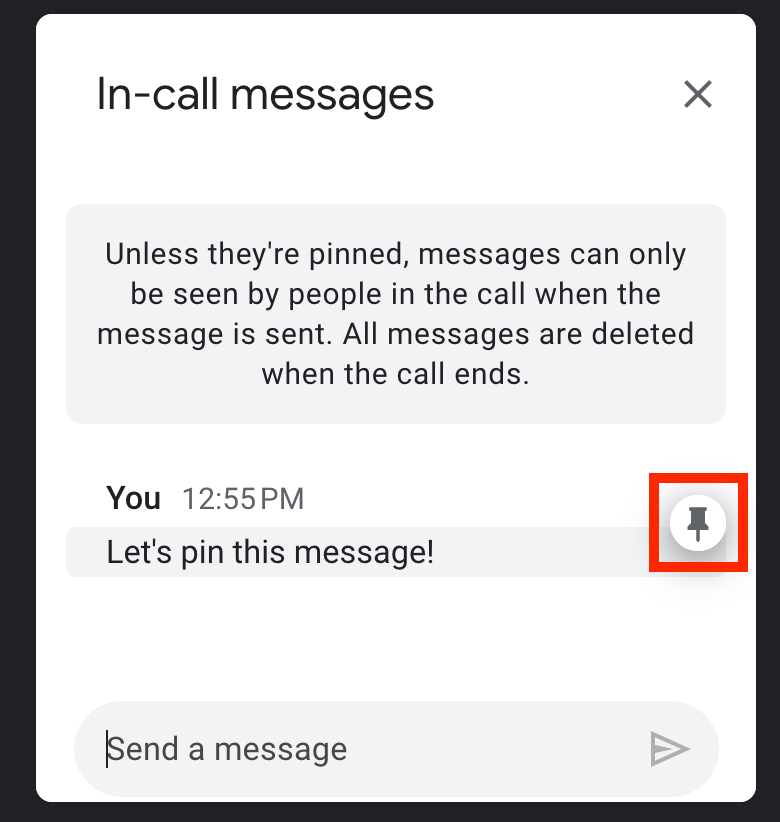
Pin chat messages in Google Meet
You can now pin messages to the top of the meeting chat. Pinned messages will appear for all users, even if they join the meeting after the message was initially sent. | Learn more about
messaging pinning.
Rapid Release Domains:
Scheduled Release Domains:
Rapid and Scheduled Release Domains:
For a recap of announcements in the past six months, check out What’s new in Google Workspace (recent releases).



.gif)