This official feed from the Google Workspace team provides essential information about new features and improvements for Google Workspace customers.


This announcement was made at Google Cloud Next ‘22. Check out Next OnAir to tune into the livestream or watch session recordings following the event. Visit the Cloud Blog to learn more about the latest Google Workspace innovations for the ever-changing world of work. 


Quick summary

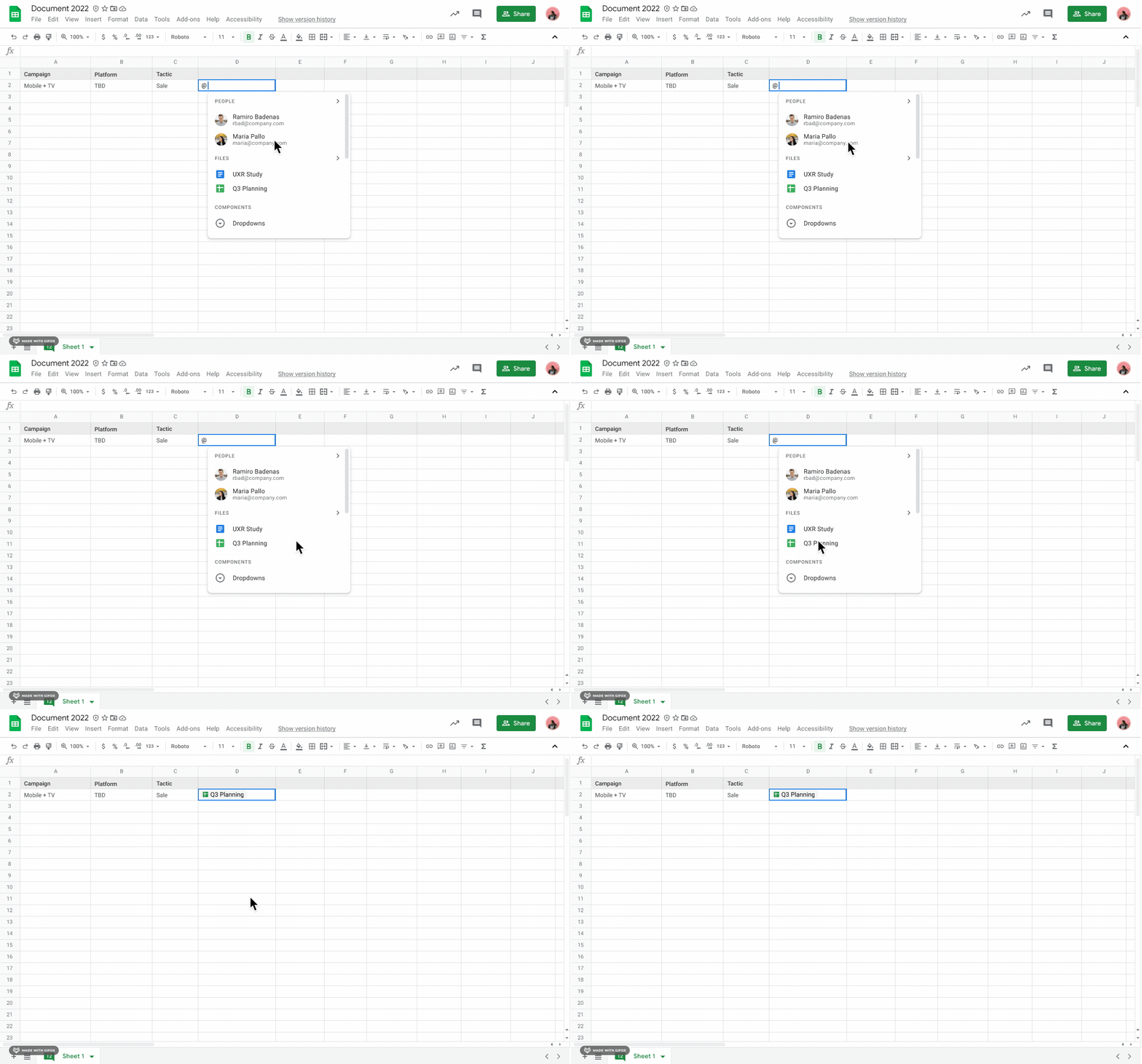
In 2021, we announced the ability to insert smart chips for files and meetings in Google Docs. As an extension of smart canvas, you can now add Google Drive files directly into a Google Sheet as a smart chip. This will make it much easier for you to quickly preview and interact with files in Sheets. 

filechipsinsheets v2

Getting started 

  • Admins: There is no admin control for this feature. 
  • End users: You can insert a chip in a Sheets cell by following one or all of the following methods: 
    • Type “@” followed by a file name or keyword directly in the cell 
    • Navigate to Insert > Smart Chips > File chip 
    •  Paste a Google Drive link directly in the cell, hover over the preview, right-click, and select “Convert to file chip.” 
    •  Visit the Help Center to learn more about inserting smart chips in Google Sheets

Rollout pace 


Availability 

  • Available to all Google Workspace customers, as well as legacy G Suite Basic and Business customers 
  • Available to users with personal Google Accounts 

Resources 

This announcement was made at Google Cloud Next ‘22. Check out Next OnAir to tune into the livestream or watch session recordings following the event. Visit the Cloud Blog to learn more about the latest Google Workspace innovations for the ever-changing world of work. 


What’s changing 

For Google Voice Standard and Premier customers, admins can now connect a Session Initiation Protocol (SIP) trunk with Voice. This allows phone numbers (PSTN services) from local carriers to be used for Google Voice through a secure set of certified Session Border Controllers (SBCs), such as Audiocodes, Cisco, Oracle, and Ribbon. SIP Link makes it easier for our customers to leverage the power of Voice. 


In the coming weeks, this feature will be available for new and existing Voice customers in supported countries. Support for more countries will be added over the coming months — we will share more information here on the Workspace Updates Blog at that time. 

Who’s impacted

Admins and end users 


Why it’s important 

SIP Link provides flexible options depending on the needs of your organization — in addition to using any SIP trunk with Voice, you can: 
  • Configure multiple deployment options, including managing on-premise management of SBC infrastructure or outsourcing to the carrier or a third-party provider 
  • Configure SBC for interoperability between Voice and any customer-owned call control infrastructure 


Getting started 


Rollout pace 


Availability 

  • Available with Voice Standard and Voice Premier licenses. 


Resources 

This announcement was made at Google Cloud Next ‘22. Check out Next OnAir to tune into the livestream or watch session recordings following the event. Visit the Cloud Blog to learn more about the latest Google Workspace innovations for the ever-changing world of work. 


What’s changing 

You can now transcribe a Google Meet video meeting into a Google Doc. The transcribed file is saved in the hosts “Meet Recordings” folder in Google Drive, similar to meeting recordings. This feature can only be accessed when using Google Meet on a desktop or laptop. At this time, this feature is only supported in English. 

Transcribe speech during Google Meet calls into a Google Doc
When turned on, a “Transcribing” badge will appear in the top left corner of the meeting.


Who’s impacted 

End users 


Why you’d use it 

Meeting transcripts can automatically capture the meeting discussion, making it easier to follow up afterward or serve as a record. 


For meetings with fewer than or equal to 200 invitees, the meeting host, co-hosts, or the transcript initiator will receive a link to the transcription document via email after the meeting ends. Additionally, the transcript will automatically be attached to the associated calendar invite for the meeting. 


For meetings with more than 200 attendees, the transcription will only be shared with the meeting organizers, host, and co-hosts, and individual users who initiated a transcription. For recurring meetings, new transcription documents will be continually added to the Calendar invite. 


Additional details 

Before joining a meeting, attendees will see a notification informing them when transcripts are active. 


Getting started 

  • Admins: 
    • The availability to use this feature will be ON by default and can be configured at the group, domain, or OU level. Note that there is no admin control for Google Workspace Business Standard customers. 
    • Visit the Help Center to learn more about turning Meet Transcriptions on or off
    • Note: For Google Workspace Education users with a teacher license, transcripts are ON by default. For those with a student license, transcripts are OFF by default. 
  • End users:
    • If host management is off, in-domain participants can use transcripts. If host management is on, only meeting hosts and co-hosts can turn transcripts on. 
    • To use transcripts in a meeting, eligible users can visit the activities panel and click “Transcripts.” When turned on, a “Transcribing” badge will appear in the top left corner of the meeting. To end the transcription, the user can click “Stop transcription,” and it will be saved to their Google Drive. Transcriptions will not begin without an eligible user initiating it.

Rollout pace 


Availability 

  • Available to Google Workspace Business Standard, Business Plus, Enterprise Starter, Enterprise Standard, Enterprise Plus, Education Plus, and the Teaching and Learning Upgrade customers 
  • Not available to Google Workspace Essentials, Business Starter, Education Standard, Enterprise Essentials, Education Fundamentals, Frontline, and Nonprofits, as well as legacy G Suite Basic and Business customers 
  • Not available to users with personal Google Accounts 

Resources 

This announcement was made at Google Cloud Next ‘22. Check out Next OnAir to tune into the livestream or watch session recordings following the event. Visit the Cloud Blog to learn more about the latest Google Workspace innovations for the ever-changing world of work. 


What’s changing 

When using Google Meet Hardware devices, meeting hosts can now assign conference rooms to breakout rooms. Extending breakout rooms to all meeting participants—whether they’re joining remotely or in the office—ensures everyone can engage in collaborative working sessions. 


Getting started 

  • Admins: There is no admin control for this feature. 
  • End users: This feature will be available by default — once a meeting participant joins from a meeting room, the meeting host can assign it to a breakout room. Visit the Help Center to learn more about using breakout rooms in Meet.

Rollout pace 


Availability 

Breakout Rooms 
  • Available to Google Workspace Essentials, Business Standard, Business Plus, Enterprise Starter, Enterprise Essentials, Enterprise Standard, Enterprise Plus, Education Plus, the Teaching and Learning Upgrade, Frontline, and Nonprofits customers 

Note that all meeting participants can participate in breakout rooms. 

Resources 

New updates 

Unless otherwise indicated, the features below are fully launched or in the process of rolling out (rollouts should take no more than 15 business days to complete), launching to both Rapid and Scheduled Release at the same time (if not, each stage of rollout should take no more than 15 business days to complete), and available to all Google Workspace and G Suite customers. 

Improved experience for the Calendar guest list in Google Meet 
To help participants run effective hybrid meetings, in addition to seeing the RSVP status of everyone on the meeting invite, you'll now see all information from the Google Calendar guest list, including: 
  • Working Location 
  • Out of office status 
  • If the meeting is outside of an invitees working hours 
  • If an invitee is joining from the meeting room 


Available to Google Workspace Enterprise Standard, Enterprise Plus, Business Starter, Business Standard, Business Plus, Education Fundamentals, Education Standard, the Teaching & Learning Upgrade, Education Plus, Non profit customers, and legacy G Suite Basic and Business customers. | Learn more


Gmail now supports Android 13 notification permissions 
Upon setting up your new Android 13 device and opening Gmail, you will be asked if you want to allow notifications from the app. We recommend allowing notifications and visiting the Gmail settings page to control what type of email notifications you want to receive. | Learn more


Easily drop content into Slides from other apps on Android 
A few months ago, we added several new features and functionality to products like Google Drive, Docs, Sheets, Slides, and Keep on Android devices. The ability to drag and drop content from other Android apps into Slides is the latest update. We hope this enhances flexibility by giving you more ways to work with, display and organize your content. | Learn more

slides-drag-drop-android


Previous announcements 

There are no previous announcements to share this week. Please see above for new announcements. 

Join us at Google Cloud Next ‘22 October 11-13, 2022 and check out Next OnAir to tune into the livestream or watch session recordings following the event.