This official feed from the Google Workspace team provides essential information about new features and improvements for Google Workspace customers.


What’s changing

Last year, we made it easier to send individual emails to many recipients with the launch of multi-send in Gmail, and introduced the ability to personalize multi-send emails with mail merge tags like @firstname and @lastname. 

Today, we’re excited to announce that mail merge will support Google Sheets in the web version of Gmail. This integration will allow you to link a Sheet with up to 1,500 recipients and use any data column from your Sheet as a mail merge tag. 
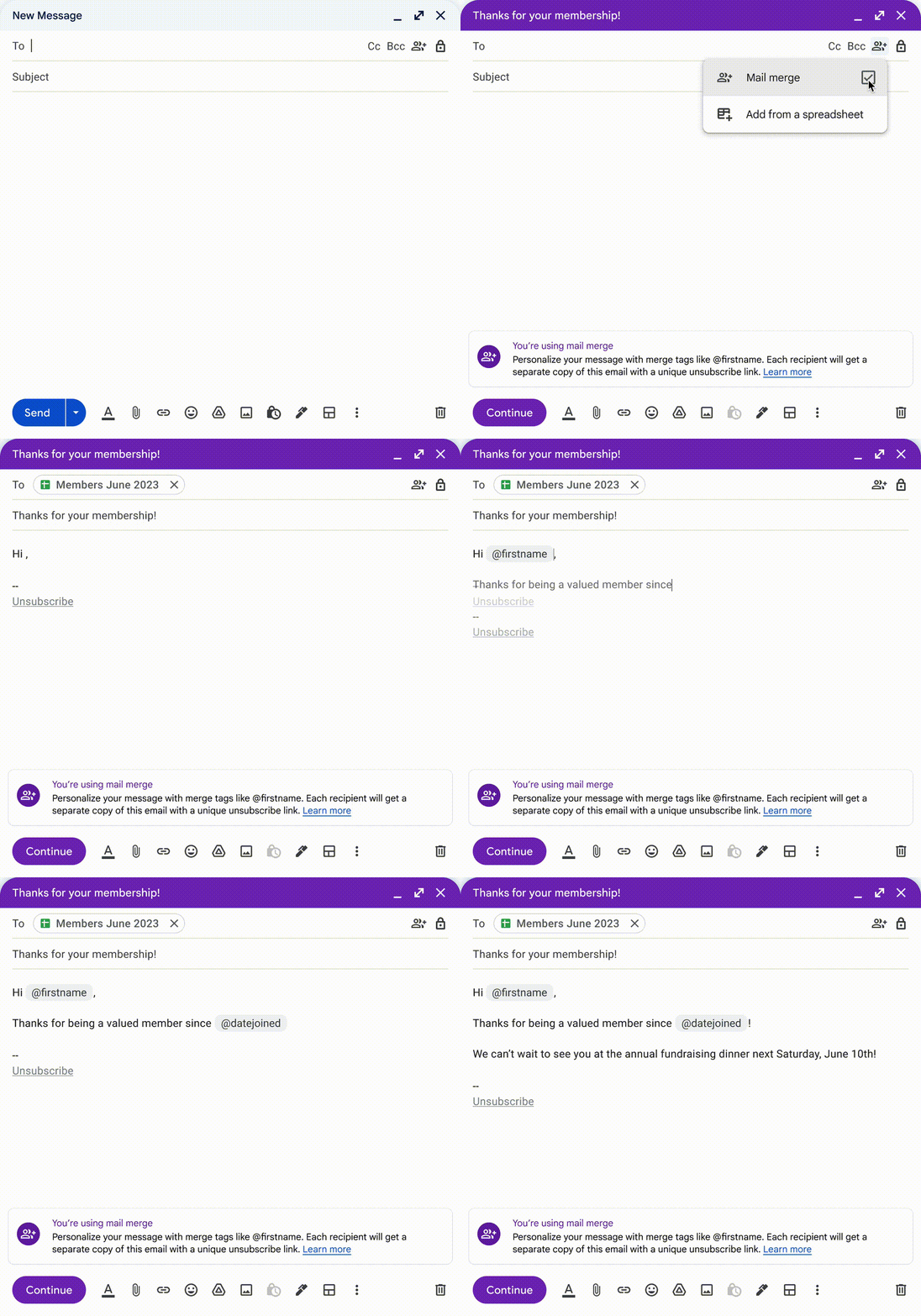
Google Sheets now integrated with mail merge in Gmail

Who’s impacted 

End users 

Why it’s important 

With mail merge you can send more personalized and engaging emails to large audiences from web Gmail. 

Additional details 

With this update, mail merge will fully replace multi-send. We’re also moving the icon for mail merge from the main compose toolbar at the bottom of your email draft to the top-right corner of your compose window. You can still use mail merge without linking a Sheet, using the built-in merge tags: @firstname, @lastname, @fullname, and @email. 

Like multi-send, mail merge emails contain a unique unsubscribe link for each recipient by default. Recipients who unsubscribe from your emails are automatically excluded from future mail merge emails you send. 

Learn more about mail merge in Gmail.

Getting started 

  • Admins: 
    • For Google Workspace Enterprise Standard, Enterprise Plus, Education Standard, and Education Plus customers, mail merge is restricted to internal recipients by default. 
    • For Google Workspace Business Standard and Business Plus customers, mail merge is available for external recipients by default. 
    • For all Google Workspace editions, you can turn mail merge ON for external recipients at the OU or Group level. 
    • Visit the Help Center to learn more about managing Gmail settings for your users, and customizing access policies for different organizational units or groups. 
  • End users: 
    • To link your Sheet to a draft in Gmail: 
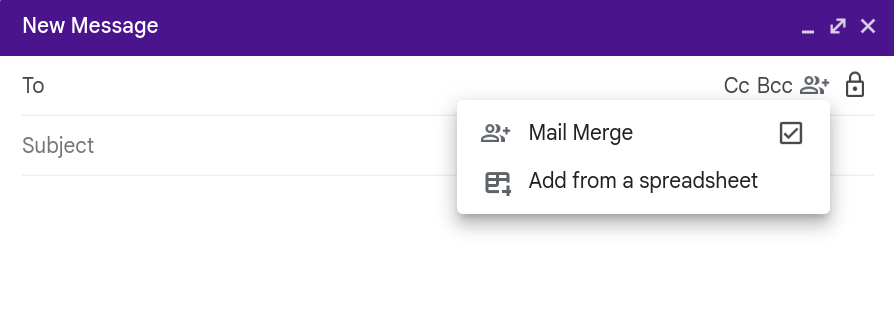
      • Turn on mail merge using the icon in the top-right corner of a new compose tab. 
      • Click Add from a spreadsheet and select which Sheet you want to use for recipient data.
        • The Sheet must contain at least one column of email addresses and one column with recipient names. 
          Mail Merge + Add from a spreadsheet
        • Note: Your recipient data must be in the first tab of the Sheet. 
        • Note: Users are limited to 1,500 mail merge recipients or messages per day, and you can't use Cc or Bcc when recipients are added from a Sheet. 
      • Next, you will see a Finish linking spreadsheet dialog:
        • Choose the columns that contain recipients’ email addresses and names. 
      • To insert merge tags to your draft: 
        • Type “@” in your draft to show a list of available merge tags. 
        • Every valid column in the first tab of your Sheet should be available as a merge tag. 
        • Insert the desired merge tag by pressing Enter or by clicking on the tag. 
        • Note: Merge tags can’t be used in the subject line or in links. 
      • Visit the Help Center to learn more about mail merge in Gmail. 

Rollout pace 

  • Rapid Release domains: Gradual rollout (up to 15 days for feature visibility) starting on June 27, 2023 
  • Scheduled Release domains: Extended rollout (potentially longer than 15 days for feature visibility) starting on July 19, 2023 

Availability 

  • Available to Google Workspace Business Standard, Business Plus, Enterprise Standard, Enterprise Plus, Education Standard, Education Plus customers and Nonprofits 

Resources 


What’s changing 

If you’re using a virtual desktop infrastructure (VDI) to join a Google Meet meeting, you can now use background blur and light adjustment. Background blur will intelligently separate you from the background, blurring your surroundings while keeping you clear and in focus. Light adjustment automatically detects when you appear underexposed and enhances the brightness to improve your visibility. Note that these effects will only be applied once you join a call, they cannot be previewed in the greenroom. 


For admins, this optimization will help cut down on the demand put on your VDIs, such as CPU, GPU, and memory usage while helping to improve meeting quality and performance. For this reason, you may consider removing GPU resources from your VDIs for cost savings. 

Getting started 


Rollout pace 


Availability 

Quick summary 

We are introducing a new quick action to access popular features in Google Meet. By hovering the mouse on top of your own video feed, you can access video effects such as immersive backgrounds or fun filters to bring more fun to your meetings and a reframing option to improve your visibility. 

Quick action from your own video feed


You can also turn off the video feed from other participants using the quick action on their video. This can be helpful in situations where you want to focus your meeting view to just the presenter or hide participants with distracting video feeds. 

Getting started 


Rollout pace 


Availability 

  • The new quick action menu is available to all Google Workspace customers 
  • Note: The reframing feature is only available to Google Workspace Business Standard, Business Plus, Enterprise Starter, Enterprise Essentials, Enterprise Standard, Enterprise Plus, Education Plus, the Teaching and Learning upgrade, and Workspace Individual customers. Also available to Google One Subscribers with 2TB or more storage space 

Resources 

2 New updates

Unless otherwise indicated, the features below are fully launched or in the process of rolling out (rollouts should take no more than 15 business days to complete), launching to both Rapid and Scheduled Release at the same time (if not, each stage of rollout should take no more than 15 business days to complete), and available to all Google Workspace customers.


Adding flexibility to email collection in Google Forms 
Previously, when creating or modifying a Google Form and editing the “Responses” section, form creators only had the option to toggle the "Collect email addresses" option on or off. If enabled, this meant when users filled out the form, their email was automatically collected with their form submission. To add flexibility, we’ve introduced the ability to choose between the following email collection options:
  • Verified email collection (previously known as automatic email collection)
  • Responder input (previously known as manual email collection)
  • Do not collect
The verified collection option will now require a user to click a checkbox to confirm which email address is being collected upon submission. | Learn more about viewing & managing form responses. 

Adding flexibility to email collection in Google Forms
Gain consensus from collaborators quickly with voting chips in Google Docs 
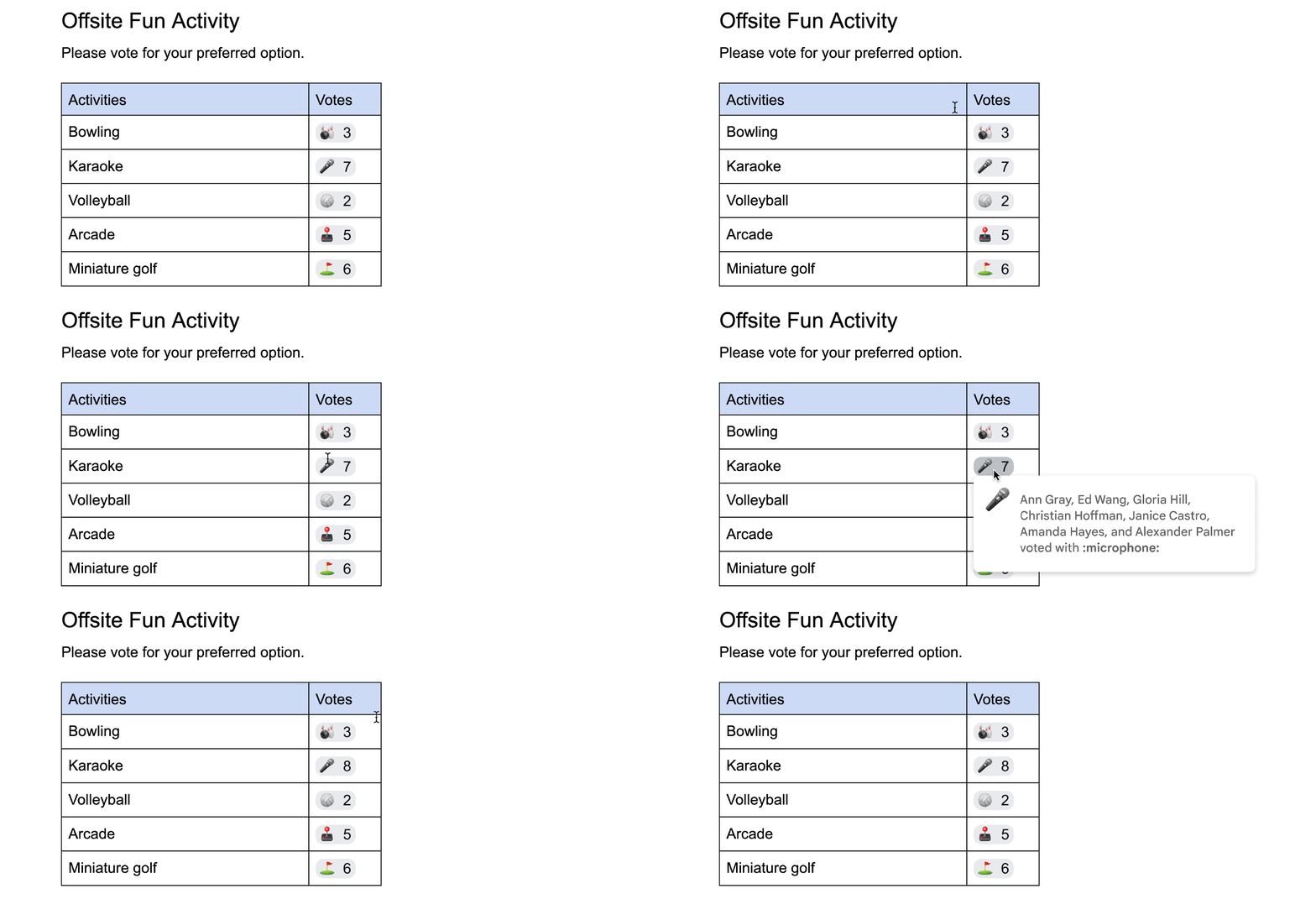
You can now add smart chips that contain emojis to use as voting indicators in Google Docs. This feature helps teams express themselves while they’re collaborating in Docs by allowing you to rank or compare ideas. | Available to Google Workspace Business Standard, Business Plus, Enterprise Standard, Enterprise Plus, Education Plus customers and Nonprofits only. | Learn more about inserting smart chips & building blocks in your Google Doc. 
Voting chips in Google Docs


Previous announcements

The announcements below were published on the Workspace Updates blog earlier this week. Please refer to the original blog posts for complete details.


Launching in beta: programmatically write working locations with the Calendar API 
Available now in beta through our Developer Preview Program, you can write a user’s working location using the Calendar API. | Available to Google Workspace Business Standard, Business Plus, Enterprise Standard, Enterprise Plus, Education Fundamentals, Education Plus, Education Standard, the Teaching and Learning Upgrade and Nonprofits customers only. | Learn more about writing working locations with the Calendar API. 

Enhancing Google Vault file retention capabilities using Google Drive Labels 
Google Vault now supports custom retention rules based on Drive labels. | Available to Google Workspace Business Plus, Enterprise Essentials, Enterprise Essentials Plus, Enterprise Standard, Enterprise Plus, Education Standard, and Education Plus customers only. | Learn more about Vault file retention using Google Drive Labels. 

Respond to access requests for Google Workspace files more efficiently 
Users can now review and respond to requests from within the file. Approvers will see a notification dot on the “Share” button if they have a pending access request and a new banner at the top of the sharing dialog. | Learn more about responding to access requests. 

Monitor additional Google Meet hardware issues in the Admin console 
You can now use the Admin console to detect and monitor additional Meet hardware issues, such as: missing display, missing controller, missing default camera, missing default microphone, missing default speaker, and missing default whiteboard camera. | Learn more about monitoring Google Meet hardware issues. 

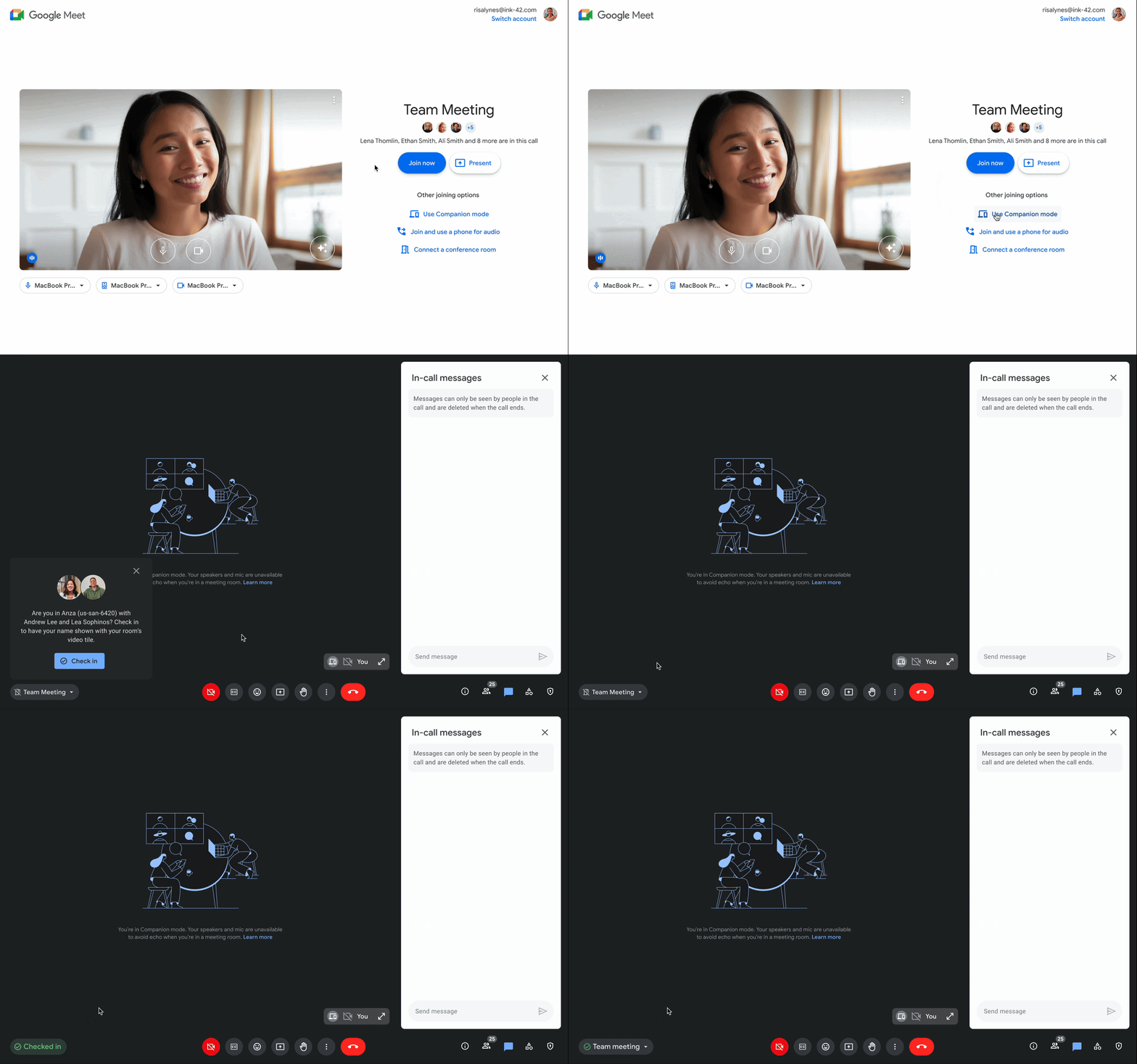
Use companion mode to check-in to a Google Meet conference room, so everyone can know you by name
If you’re joining a meeting from a conference room, you can use companion mode on your personal device to check in to that specific room. Room check-in allows everyone on the call to easily identify who is in the conference room, rather than simply seeing the conference room name. | Learn more about companion mode check-in with Google Meet.


Completed rollouts

The features below completed their rollouts to Rapid Release domains, Scheduled Release domains, or both. Please refer to the original blog post for additional details.

Scheduled Release Domains:
Rapid and Scheduled Release Domains:


    For a recap of announcements in the past six months, check out What’s new in Google Workspace (recent releases).

    What’s changing 

    One of the challenges of joining a virtual meeting from a conference room, is that the people in the room are identified by the name of the conference room rather than as individuals. But that’s changing today with the new companion mode check-in feature in Google Meet. If you’re joining a meeting from a conference room, you can use companion mode on your personal device to check in to that specific room. Room check-in allows everyone on the call to easily identify who is in the conference room, rather than simply seeing the conference room name.

    You’ll be prompted to check into a room after joining companion mode on your personal device.

    Checked-in participants will appear under the conference room 


    Checked-in participants will be grouped under the conference room in the people panel


    Room check-in will be available by default, but admins can turn this feature off for specific Meet hardware devices or specific users. For more information, see the “Additional details” section.


    Who’s impacted 

    Admins and end users 


    Why you’d use it 

    Rather than being represented in a meeting just by the conference room you’re in, room check-in helps ensure everyone in the meeting can see your name and be aware of your presence. 

    If you turn on your personal video tile in companion mode, it along with the conference room name, will be shown while you’re presenting. 

    You’ll notice the same experience when using hand raise as well.


    If your personal video tile is turned off, we’ll display the hand raise icon next to your name in the conference room view.

    The conference room name is visible when using your personal tile & the hand raise feature.


    Combined, this helps boost individual representation, making meetings more equitable, inclusive, and collaborative. 


    Additional details 

    Admin controls for room check-in 
    Admins can turn off room check-in for specific Meet hardware devices within an organizational unit in the Admin console under Admin Console > Devices > Google Meet hardware > [Organizational Unit] > Device Settings > Room Check-In > Uncheck “Users can check in to this device’s meeting room.” This can be particularly useful in instances where the check-in feature should not be used on dedicated executive devices or in large meeting rooms. 


    Admins can also turn this feature off for specific users within an organizational unit. Admins can use this option to slowly rollout room check-in department by department, for example. To turn room check-in off for specific users, navigate to Apps > Google Workspace > Google Meet > [Organizational Unit] > Meet Video Settings > Room Check-In > Uncheck “All users can check in to eligible rooms” in the admin console. 


    Device Support 
    This feature is only available for Google Meet hardware devices; interop devices are not supported at this time. 


    Getting Started 

    • Admins: 
      • This feature will be ON by default and can be disabled at organizational unit level for specific hardware devices or users. Visit the Help Center to learn more about managing Meet settings. 

    • End users: 

    Rollout pace 


    Availability 

    • Available to all Google Workspace customers with Meet Hardware devices 

    Resources