This official feed from the Google Workspace team provides essential information about new features and improvements for Google Workspace customers.


Update

[April 1, 2022]: We have updated this post with additional information about these features, including admin controls and feature availability. 


What’s changing 

We’ve added several new assistive writing features in Google Docs, which will provide a variety of tone and style suggestions to help you create impactful documents faster. Specifically, you’ll see suggestions for: 

  • Word choice: More dynamic or contextually relevant wording 
  • Active voice: Active rather than passive voice 
  • Conciseness: More concise phrases 
  • Inclusive language: More inclusive words or phrases 
  • Word warnings: Reconsidering potentially inappropriate words 

Who’s impacted 

End users 

Why you’d use it 

These new features offer a variety of stylistic and writing suggestions as you compose documents. Suggestions will appear as you type and help guide you when there are opportunities to avoid repeated or unnecessary words, helping diversify your writing and ensuring you’re using the most effective word for the situation. 

You’ll see suggestions when there are opportunities to structure a sentence with an active voice or when a sentence can be more concise, helping to make your writing more impactful. Potentially discriminatory or inappropriate language will be flagged, along with suggestions on how to make your writing more inclusive and appropriate for your audience. 

We hope this will help elevate your writing style and make more dynamic, clear, inclusive, and concise documents. 

Getting started 

  • Admins: 
    • These features will be ON by default and can be turned off in the admin console for eligible select Google Workspace education editions — see Availability details below. 
    • In the coming weeks, we will introduce these admin controls for the remaining eligible Google Workspace editions —see Availability details below. For those editions, these features will be ON by default and can be turned off at the domain, OU, and group level. 
  • End users: 
    • This feature will be ON by default and can be disabled by the user. Visit the Help Center to learn more about managing writing suggestions in Google Docs. 
    • When typing in Docs, tone and style suggestions are indicated with a purple underline. Selecting the underline will show a brief description for the suggestion — you can accept or reject the suggestion from here. 


Rollout pace

Update: [May 20, 2022]: We have paused rollout for these features while we evaluate and optimize performance. For users enrolled in the alpha for these features, your experience will not change.

Availability 

  • Word choice, Active voice, Conciseness, Inclusive language: 
    • Available to Business Standard, Business Plus, Enterprise Standard, Enterprise Plus, Education Plus 
    • Not available to Google Workspace Essentials, Business Starter, Enterprise Essentials, Education Fundamentals, Teaching and Learning Upgrade, Education Standard, Frontline, Nonprofits, G Suite Basic and Business customers 
  • Word Warnings: 
    • Available to Business Standard, Business Plus, Enterprise Standard, Enterprise Plus, Education Fundamentals, Education Standard, Education Plus, Teaching and Learning Upgrade 
    • Not available to Google Workspace Essentials, Business Starter, Enterprise Essentials, Frontline, Nonprofits, G Suite Basic and Business customers 

Resources 

 What’s changing 

Last year we announced the beta for Google Workspace Client-side encryption. Now, this feature is generally available for Google Drive, Docs, Sheets and Slides, with support for multiple file types including Office files, PDFs, and more. 
This is a step in our commitment to enable Client-side encryption across Google Workspace, including Gmail, Meet, and Calendar. Follow the Google Workspace Updates blog to be informed on our next milestones on Client-side encryption. 

Who’s impacted 

Admins 

Why it’s important 


Google Workspace already uses the latest cryptographic standards to encrypt all data by default, at rest and in transit between our facilities. Client-side encryption goes beyond this, giving you authoritative control and privacy as the sole owner of private encryption keys and the identity provider used to access those keys. 
This can help you strengthen the confidentiality of your sensitive or regulated data while addressing a broad range of data sovereignty and compliance needs. 
When using Client-side encryption, your data is indecipherable to Google. You can create a fundamentally stronger privacy posture, whether that’s to help your organization comply with regulations like ITAR and CJIS or simply to better protect the privacy of your confidential data. 
Read our announcement blog post to learn our plans for Client-side encryption across Google Workspace.

Additional details 

To enable Client-side encryption, you’ll choose a key access service partner: Flowcrypt, Fortanix, Futurex, Stormshield, Thales, or Virtru. Each of these partners have built tools in accordance with Google’s specifications and provide both key management and access control capabilities. Your partner of choice either holds the key to decode encrypted Google Workspace files or simply provides you with software that allows you to hold the keys on-premise. Either way, Google cannot decipher these files without this key, which Google never has access to. You can also decide to build your own key service implementation using our API specifications


Client side encryption


Getting started 

Rollout pace 

Availability 

  • Available to Enterprise Plus and Education Plus customers 
  • Not available to Google Workspace Essentials, Business Starter, Business Standard, Business Plus, Enterprise Essentials, Enterprise Standard, Education Fundamentals, Frontline, and Nonprofits, as well as legacy G Suite Basic and Business customers.  

Resources 

What’s changing 

In Google Docs, you can now select “Automatically detect Markdown” from Tools > Preferences to enable auto correcting for Markdown syntax, a lightweight markup language for applying formatting using plain text. Currently, Google Docs supports some Markdown syntax, such as: 

  •  * or - followed by a space autocorrects to bullet points 
  • Various ways to start a numbered list similar to Markdown 
  • [] followed by a space autocorrects to checkboxes 

The expanded support will now support autocorrection for: 

  1. Headings
  2. Italic and bold
  3. Bold + italic
  4. Strikethrough
  5. Links


Who’s impacted 

End users 

Why you’d use it 

With this added support, you can create rich text documents faster without having to learn keyboard shortcuts. 

Getting started 

Rollout pace 

Availability 

  • Available to all Google Workspace customers, as well as legacy G Suite Basic and Business customer Available to users with personal Google Accounts 

Resources 

Quick summary 

We've improved how comments and highlighted text are announced with braille support enabled in Google Docs. This change makes it easier for users of assistive technology, including screen readers and refreshable braille displays, to interact with comments in documents and identify text with background colors. 

When reading the document, you’ll now hear start and end indications for comments and highlights alongside the rest of the text. These announcements will respect the comment and marked text settings that screen readers provide. We hope this additional information serves as useful context and makes it easier to collaborate when working in Google Docs. 

Getting started 

  • Admins: There is no admin control for this feature. 
  • End users: This feature will be OFF by default and can be enabled by the user going to Tools > Accessibility settings > Turn on braille support. Visit the Help Center to learn more about how to Use a braille display with Docs editors. 

Additional details 

Users should update to the latest versions of their assistive technologies and browsers to fully benefit from these improvements. 

Rollout pace 

Availability 

Available to all Google Workspace customers, as well as legacy G Suite Basic and Business customers

Resources 

What’s changing

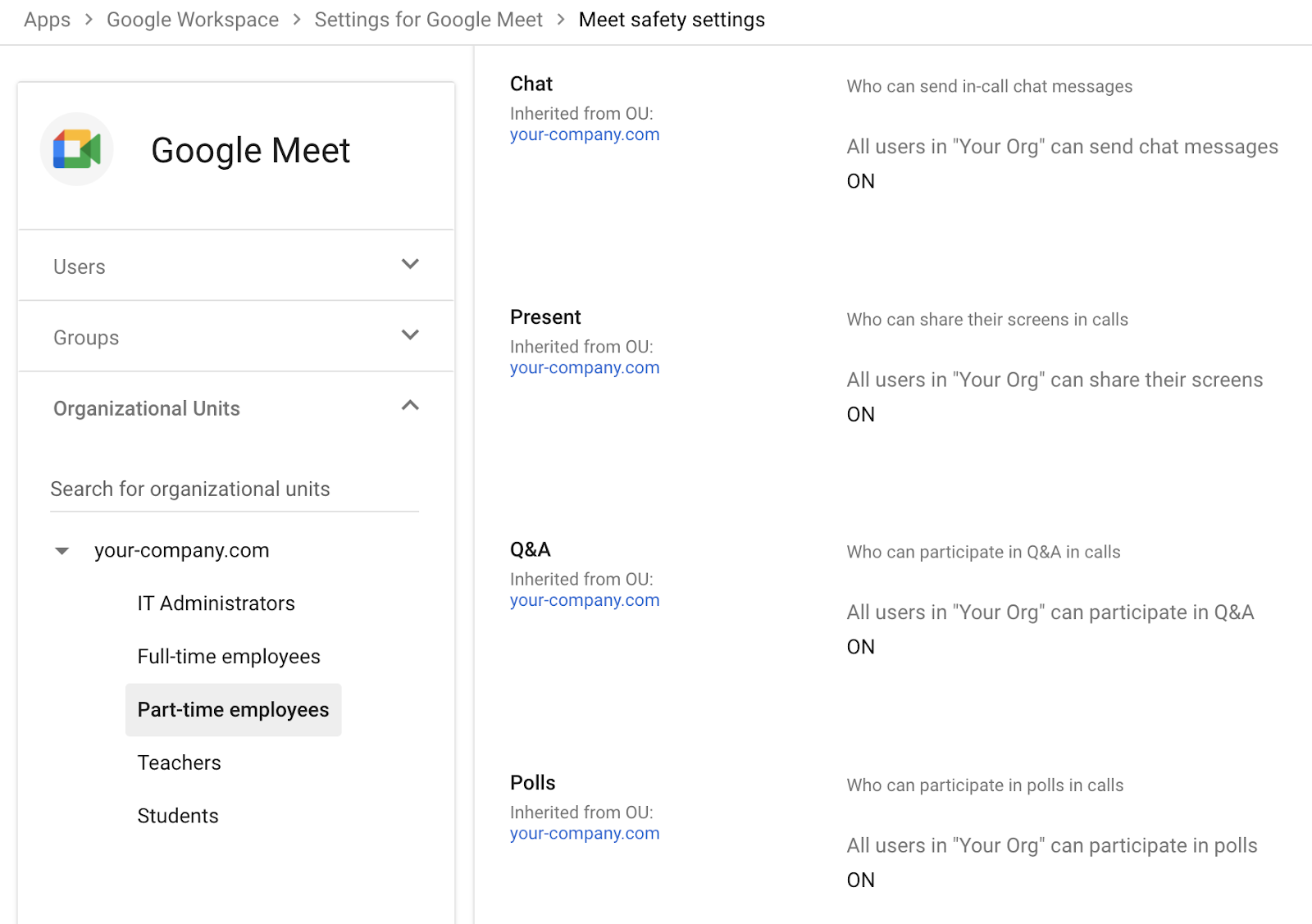
Through new settings in the Admin console, admins can now control access to the following Google Meet features:

  • Chat
  • Present
  • Q&A
  • Polls

These new settings are available for Google Workspace editions that include admin capabilities. See below for more information.


Who’s impacted

Admins and end users


Why it’s important

Previously, only the meeting hosts and co-hosts could control access to these features on a per meeting basis. Now admins will be able to specify which interactive Meet features users in their domain can access. 


These features give administrators more control over how Google Meet is used in their organization. For example, in a school, these settings allow you to control whether or not students can present or send chat messages during video meetings. In business settings, specifically at large company meetings, giving the event host control over whether or not to conduct polls or Q&As during video meetings is a useful feature.


Additional details

Once an admin turns access to a particular feature off, the setting will be applied to all new and existing meetings for users in the selected organizational unit.


Features that are turned off won’t be accessible to end users — see the Help Center for more information.


Getting started

  • Admins: These features are enabled by default. Access to these features can be controlled at the OU level  in the Admin console under Apps > Google Workspace > Google Meet > Meet safety settings.  Visit the Help Center to learn more about Google Meet admin settings.

  • End users: Your admin will determine access to present, chat, Q&A, and polling features in Google Meet.


Rollout pace


Availability

  • Available to all Google Workspace editions with Admin console access.
  • You’ll see admin toggles for the Google Meet features available to your specific Google Workspace edition.

Resources